To download all images from a web page in Chrome, open the page, choose the Save every image on this page starter in Tab Automation, and click Save & run. It saves the full-size file behind each thumbnail that links to one, leaves out images smaller than 100 pixels, and keeps the images in the Dashboard until you export them as a ZIP.
The same steps work on a photo gallery, a product page, or an article. For a gallery split across several pages, add For each link with the Next page source and the images from every page are saved in one run.
Save every image on a page in three steps
You’ll need Tab Automation installed. Custom automations are free; Explorer unlocks the full Dashboard. The side-panel tour covers first-time setup.
- Open the page with the images and open the Tab Automation side panel.
- Under Library → Starters, choose Save every image on this page. It opens a new automation on that tab with one Save images step set to All images, with Use linked full-size images on and Skip small images at 100 pixels.
- Open the Save images step and click Refresh preview. Check the thumbnails, then click Save & run.
Repeat is off in this starter, so the automation saves the page once and stops. Nothing is saved to your Downloads folder until you export the images.
See a verified gallery run
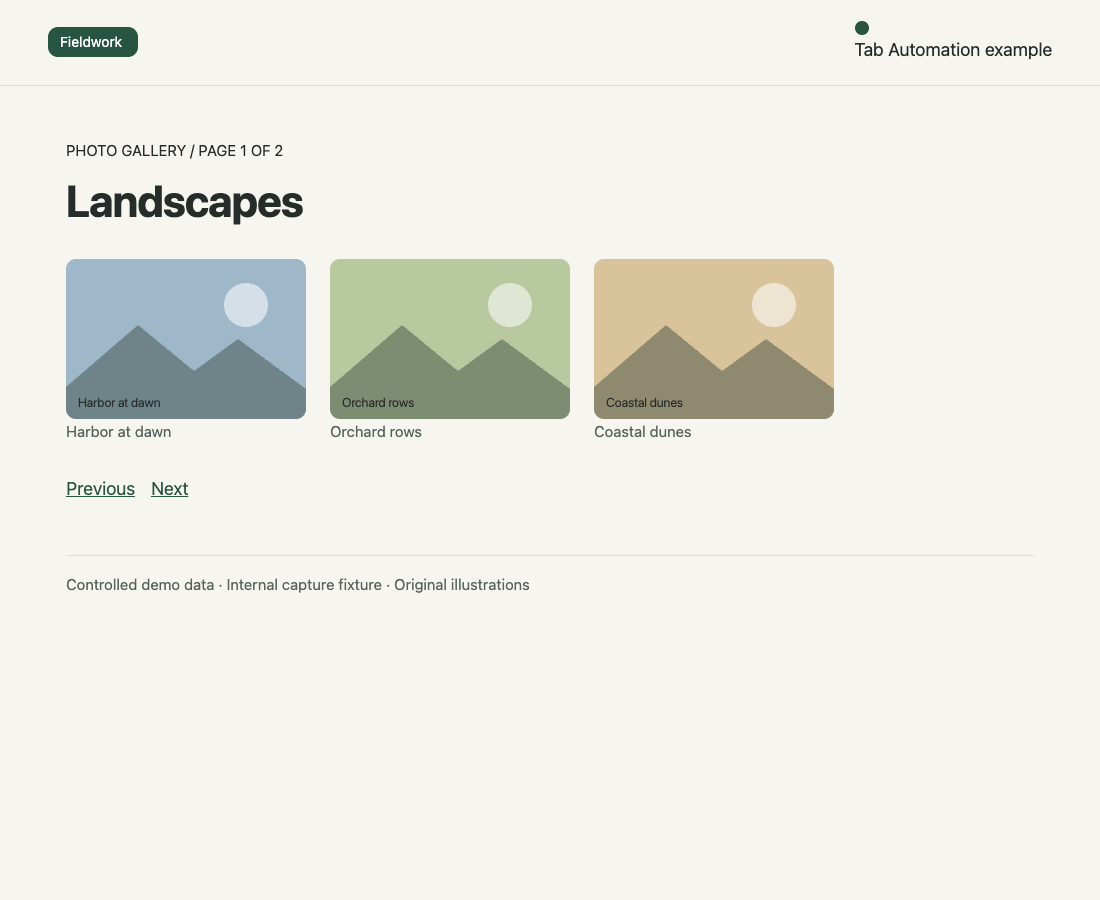
We ran an unpacked test build of Tab Automation 1.0.0 against an internal Fieldwork landscapes gallery: two pages with three photos each, drawn for this test. Each 240 × 160 thumbnail links to a 1200 × 800 original. The page also has a 90-pixel logo, a 16-pixel icon, and a 1 × 1 tracking pixel. On page 2, the last photo lazy-loads: until it scrolls into view, its image is a placeholder and its real address sits in data-src.
| What we ran | Result |
|---|---|
| Starter settings, preview on page 1 | 3 images marked Full size from link; Skipped as too small: 3 (logo, icon, pixel) |
| Starter settings, one run on page 1 | Saved the 3 full-size originals; no thumbnails, logo, icon, or pixel |
| For each link → Next page, same Save images settings | Visited both pages, stopped at the disabled Next link, and saved all 6 originals, including the lazy one |
The exported ZIP holds the six images and the exporter’s manifest. Every image in it matched its original file byte for byte.
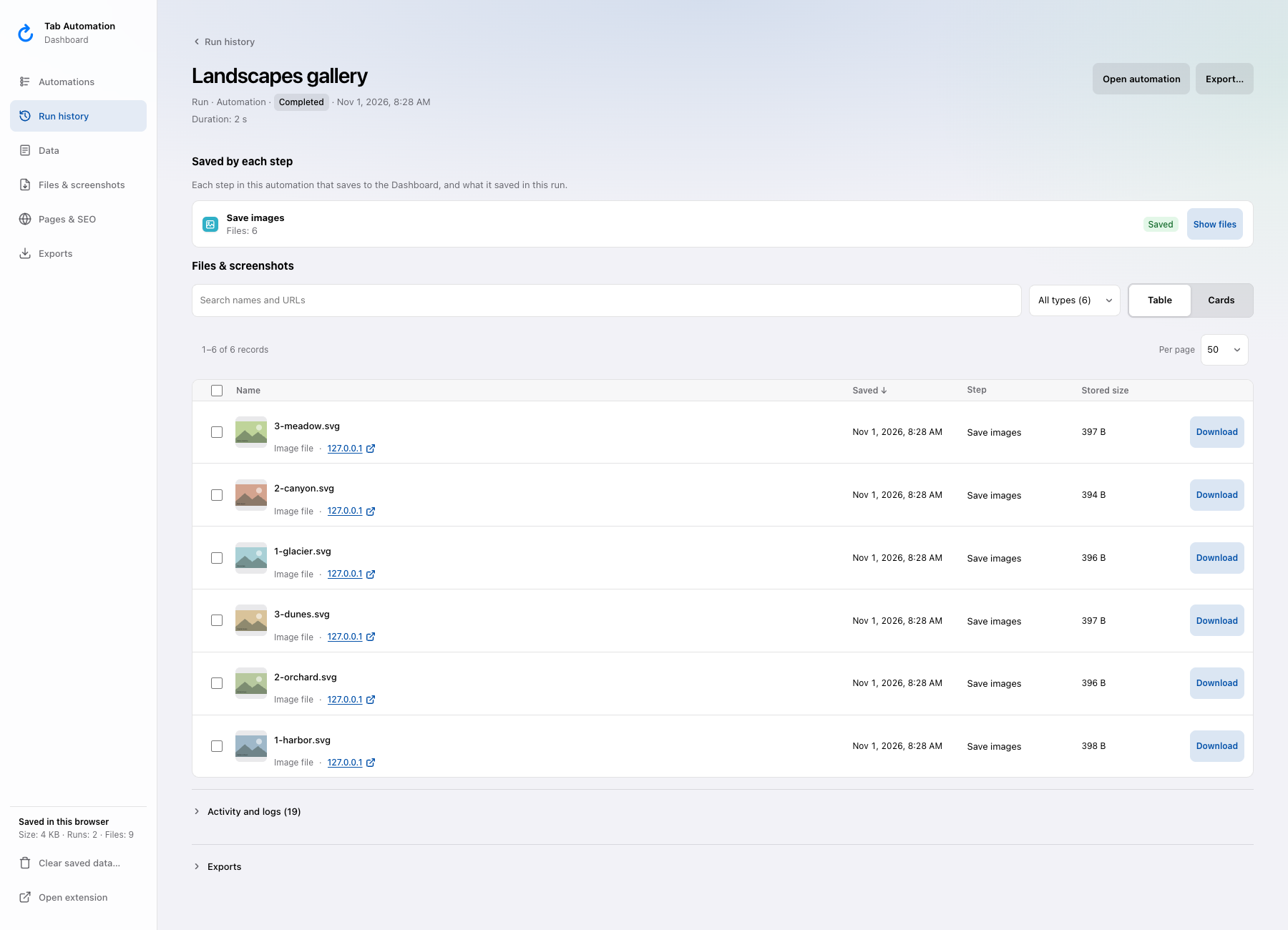
Download the actual six-image ZIP. The source addresses in the Dashboard belong to our local test server; they are not public practice pages.
Save full-size images instead of thumbnails
Galleries often show small thumbnails that link to the original image. With Use linked full-size images on, when an image sits inside a link to an image file, Save images saves that linked file instead of the thumbnail. The preview labels it Full size from link.
A link counts when its address ends in an image file extension: AVIF, BMP, GIF, JPEG, PNG, SVG, TIFF, or WebP. When a thumbnail links to a page instead, such as a photo’s detail page, the step keeps the thumbnail it can see. To save the image from each detail page, collect those links with For each link; the multiple-pages image guide and the Save images from every link starter cover that setup.
With the switch off, the step saves the image Chrome is showing. For responsive images, that is the version Chrome chose for your screen. It does not search for a larger original or upscale the file.
Leave out icons, logos, and tracking pixels
Skip small images leaves out images whose longer side is under a limit. Turning it on sets 100 pixels; change Smaller than to anything from 10 to 4,000 pixels. The preview reports how many images were left out, such as Skipped as too small: 3.
The size comes from the loaded image file. For CSS backgrounds and images that have not loaded, the step uses the element’s size on the page, and an image whose size it cannot tell is kept. A linked full-size image is judged by its thumbnail, so a very small thumbnail can be skipped even when its original is large.
Skip small images applies to All images and Images in a container. Images you choose yourself with Specific images are always kept.
Save lazy-loaded images
Many galleries load an image only when it scrolls into view. Until then, the page often shows a placeholder and keeps the real address in an attribute. When an image shows only a placeholder, Save images reads data-src, data-original, or data-lazy-src, or the largest entry in data-srcset.
Save images does not scroll the page. If the gallery adds more images as you scroll, put Scroll page set to Bottom of page and a Wait / Delay before Save images. Scroll page jumps once to the current end of the page, so add another Scroll page and Wait for pages that keep loading. Refresh the preview after scrolling to check what will be saved.
Download images from a gallery with several pages
When a gallery shows a page at a time, let the automation follow its Next link:
- Open page 1 of the gallery and choose New automation.
- Add For each link, choose Next page, then click Pick Next link and click the gallery’s Next link.
- Set Up to to the number of pages you want. It starts at 20.
- Inside Each Link, add Save images with All images, Use linked full-size images, and Skip small images, the same settings as the starter.
- Click Save & run.
The run starts on the page you are on, saves its images, then opens the page the Next link points to. It stops when there is no Next link, the link is disabled, or it reaches the page limit. Next page follows Next links that open an address, such as ?page=2. A Next button that loads more photos with JavaScript and no address is not supported.
Download the images as a ZIP
When the run finishes, open the Dashboard from the side panel and go to Files & screenshots. Select the images, or select all matching results, and choose Export… to download them as one ZIP. Each image also has its own Download button.
Exporting and downloading work without an Explorer License; opening an individual image’s details page needs one. In the ZIP, the images sit in a folder named after the automation and run, under Images, numbered by their position on each page. Wait for the run to finish before exporting it as a ZIP.
What it cannot save
- A whole website. The step saves images on the pages it visits; it does not crawl a site.
- Images inside frames or shadow roots, pseudo-element backgrounds, gradients, canvas drawings, and inline SVG graphics. An SVG file loaded from an HTTP(S) address is saved like any other image.
- Images whose only address is a
data:orblob:URL. Only HTTP(S) files are saved. - The same image twice from one page. An address that appears more than once on a page is saved once; the same image on two pages is saved from each.
- Anything while Chrome is closed. Keep Chrome open until the run finishes.
Save images you have the right to use. Downloading an image does not change who owns it.