Tab Automation
Automations for the tabs you leave open.
A no-code Chrome extension for refreshing pages, repeating clicks, capturing screenshots, and collecting data. Build workflows in the side panel and review saved results in your local Dashboard.


Active Jobs
Cycle 3
Activity2 of 8
ActivityLibrary
Yours
Pre-built
What you can automate
Start with a page that needs work. Combine steps to refresh it, work through links, or collect what you need.
Keep a page current
Reload a tab on a timer while you work elsewhere. Set how long to wait between runs.
Set up a refresh timer →Work through links
Open matching links one at a time and run your steps on each page.
Work through a list →Collect text, images, and pages
Save text as rows, retain images, or capture HTML pages for review and export.
Collect text into a dataset →Google Search
Coming soonThe pre-built Google Search workflow is coming soon. It is not available yet, including with an Explorer License.
Build and run in the side panel
Open Tab Automation from Chrome’s toolbar. Create and run custom automations for free. An Explorer License unlocks the full Dashboard. Google Search is coming soon.
Choose a page and steps
Start with an open tab or a new tab. Add the actions you need, and set Repeat if the automation should run again.
Save it for reuse
Library keeps your saved automations ready to edit and run again. Pre-built workflows give you a starting point for supported sites.
Run and monitor
Start the automation and follow it in Active Jobs. Pause, resume, or restart a run, and open Activity to inspect its steps.
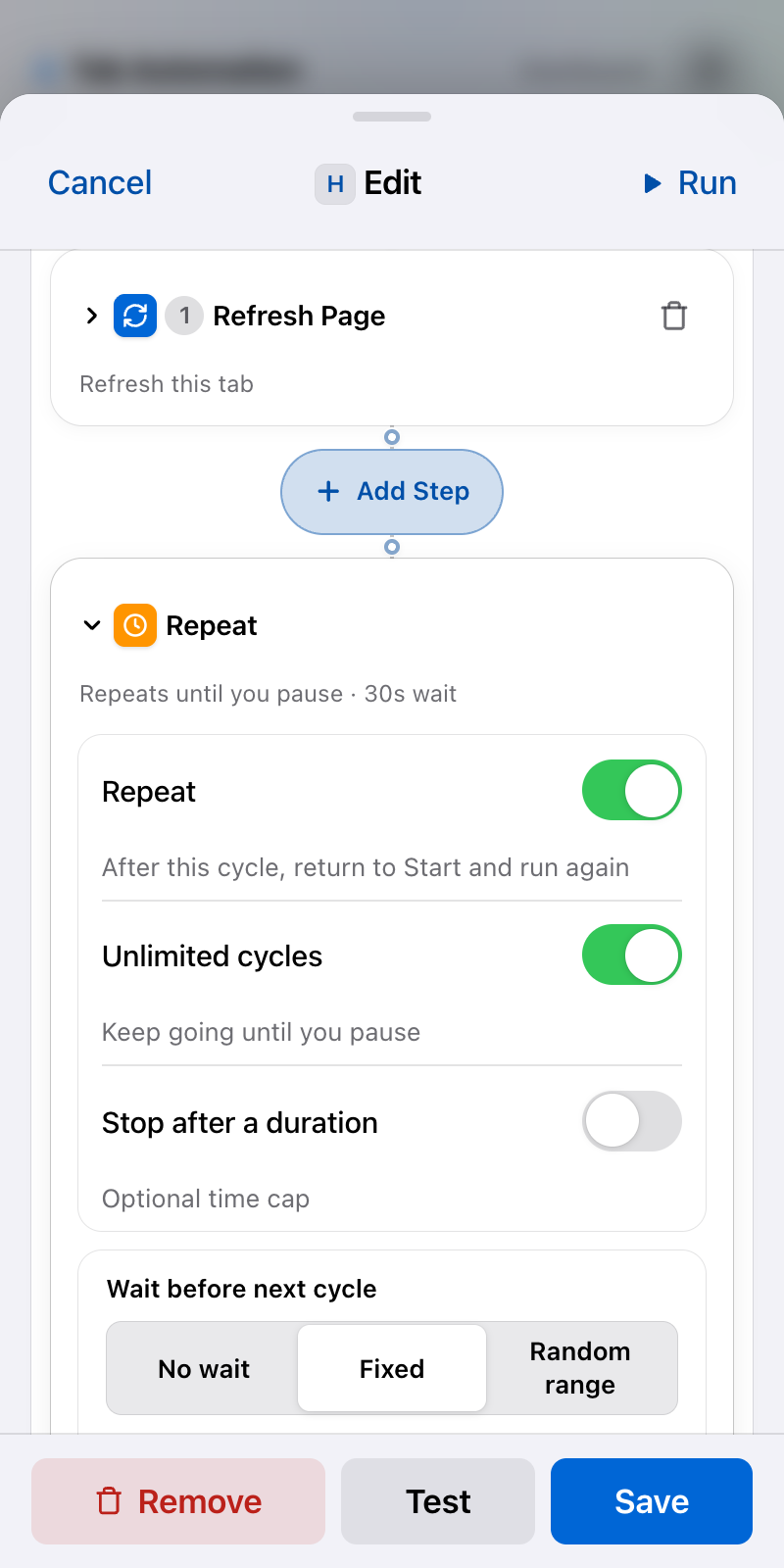
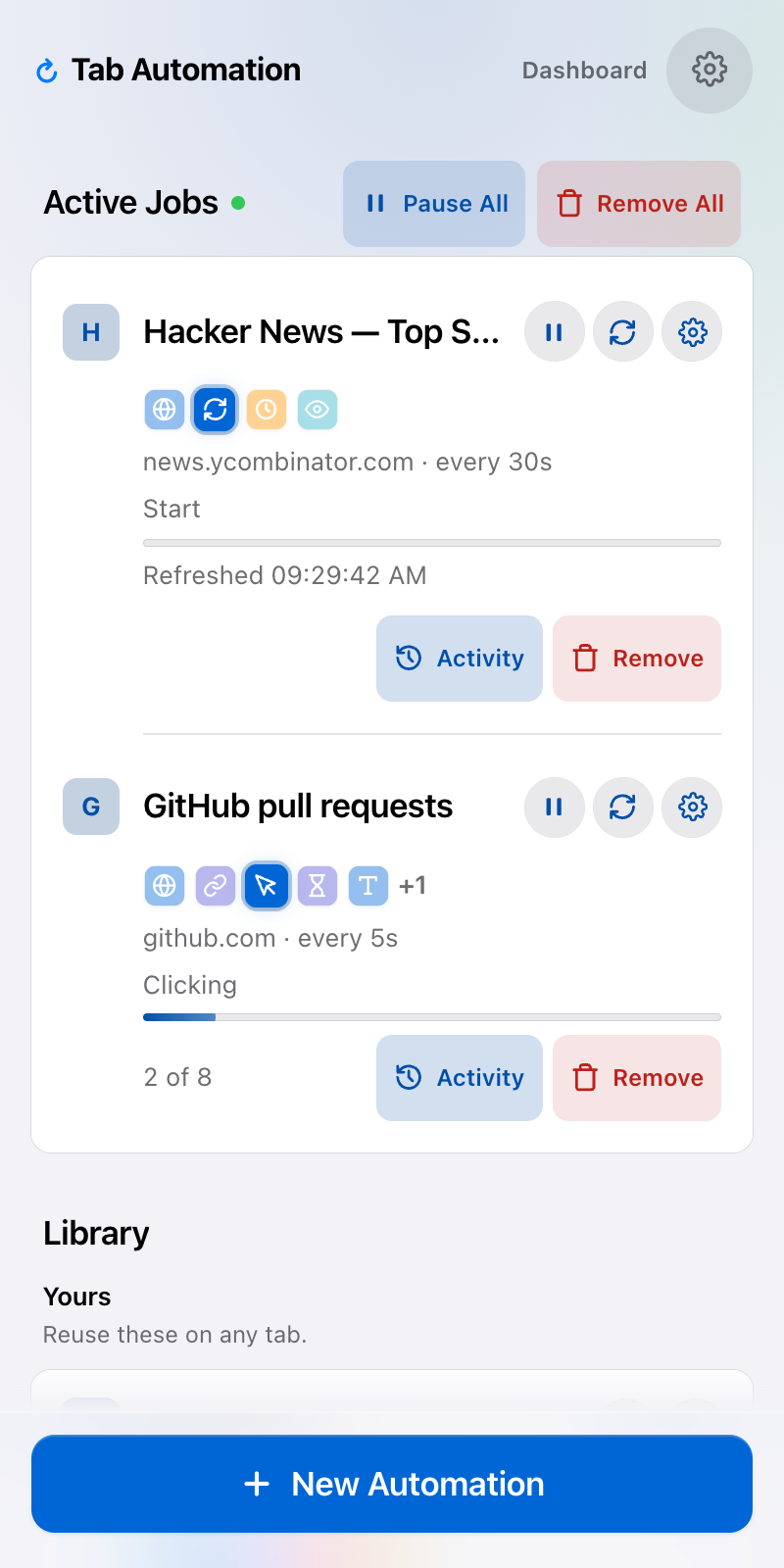
Real side-panel screens with demo data. Open a screenshot at full size to inspect the controls.
Take the side-panel tour →Review and export in the Dashboard
Open Dashboard from the side panel to find files, text tables, and Google Search datasets in Saved results. Inspect captured pages in Pages & SEO, check execution status in Run history, and track exports in Downloads. Results stay on this computer until you delete them; downloads start when you request them.
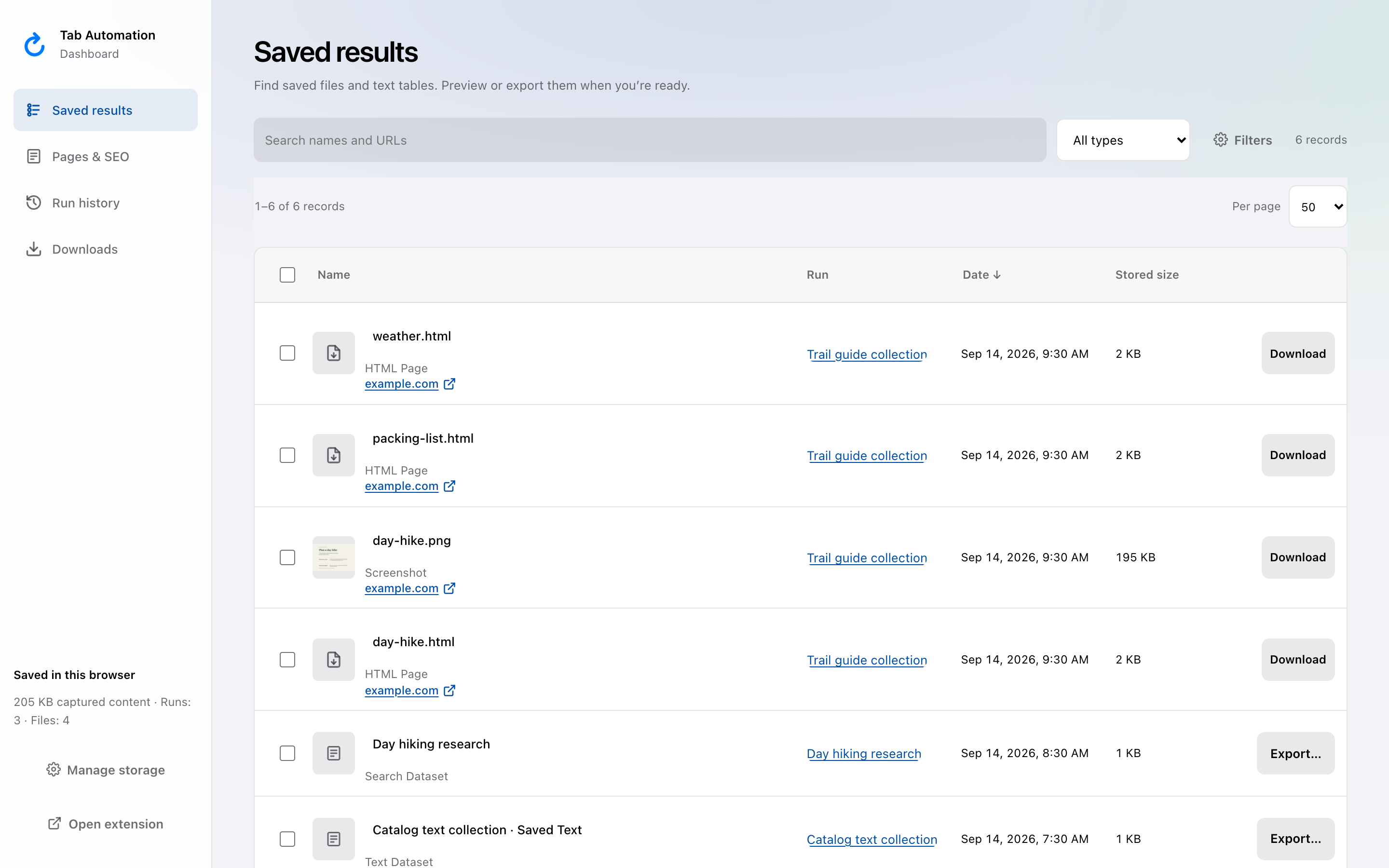
Real Dashboard screen with illustrative demo data. Open the screenshot to view it at full size.
Explore the Dashboard →Local storage, clear boundaries
You choose the pages, steps, and timing. Here is where the work runs and what it can access.
Saved on this computer
Automations and captured results stay in your browser, with no cloud or device sync. Delete retained results in the Dashboard. Uninstalling the extension removes its local data.
About local storage →Access follows your steps
Configured steps can read page content and request linked sources. The extension does not read browsing history. License keys are checked at our API, and configured webhooks send data to their destinations.
Read the privacy details →Chrome needs to stay open
Automations do not run after Chrome quits. Chrome’s internal pages, extension pages, and the Chrome Web Store are restricted. Firefox and Safari are not supported.
About background tabs →Explorer License
Help shape Tab Automation. We’re learning which workflows matter most and inviting early Explorers to guide what we build. For a limited time, claim six months of free access to the full Dashboard. Your custom automations are free.
No credit or debit card required.
Free for 6 months
Free
- The full Dashboard. Google Search is coming soon.
- One active Chrome installation/profile per key. Data stays local.
- No credit or debit card required.
Claim yours while enrollment is open. Your six months starts when your license is issued.
A useful bug report, workflow need, or suggestion earns three more months after review—even if it hasn’t shipped. We’re building this together.
Maintenance takes ongoing work. We want future pricing to be fair and useful to your workflows. Pricing is undecided. Explorer won’t automatically become a paid subscription. You can choose to purchase a paid license later.
Honest boundaries
No cloud or device sync. Firefox and Safari are not supported. Timers do not fire after Chrome quits.
Guides for common tab jobs
Set up a page refresh timer, click a button on a schedule, or walk a queue of matching links in one tab.