In Tab Automation, combine For each link with Save text to collect fields from a list of pages. Pick the fields on a sample page, add a wait if the content loads late, and run one pass. Each visited product contributes a row to the dataset, which you can export as CSV from the Dashboard.
See a real three-page export
We ran an unpacked test build of Tab Automation 1.0.0 against an internal catalog with three product pages. Each page used the same name selector, #product-name, and price selector, #price. The plate page deliberately omitted its price element. The resulting dataset contains all three products, with an empty price and a warning for the plate.
The configuration was For each link, collecting a.product-link from the catalog listing, with Wait / Delay → Fixed → 1 second and Save text inside Each Link. The two fields were named Product name and Price; Repeat was off. We also ran Test save on the mug first and verified that its separate Test row was excluded from the final export.
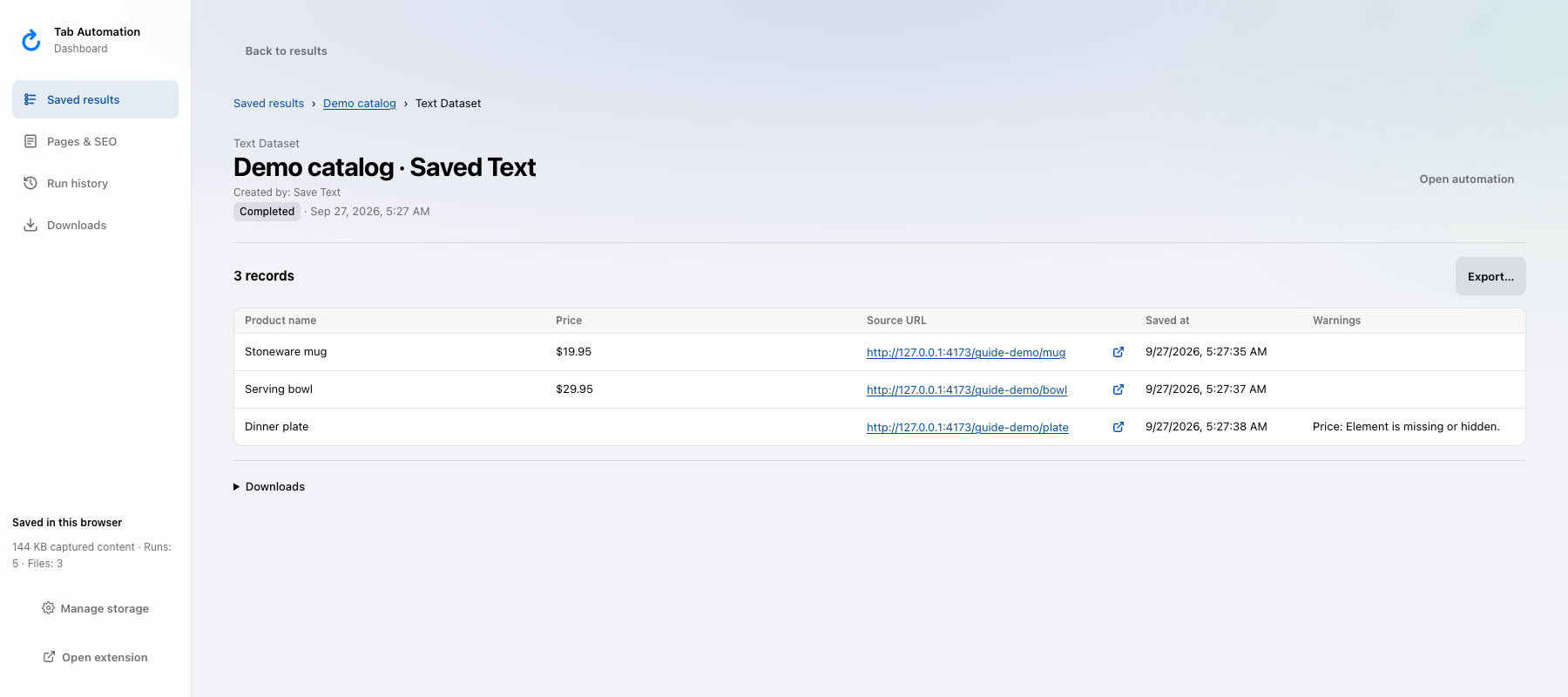
Actual Dashboard output from the controlled run. Open the full-size image to read the blank price cell and its warning.
Download the actual CSV. Its source URLs point to internal test pages; the catalog is controlled demo data, not a live store. The exported values, timestamps, and warning came from the extension’s normal collection and export paths.
Try a small set of similarly structured pages before collecting a longer list. Custom automations are free; keep Chrome open while they run.
Collect the product links
- Open your catalog listing and the Tab Automation side panel. Custom automations are free. Explorer access unlocks the full Dashboard shown here; the basic saved-results list also lets you download and export your data.
- Choose New automation, turn off Run in a new tab under Tab & startup, select the listing tab, and give the automation a recognizable name, such as
Catalog text. - Choose Add Step → For Each Link. Click Pick links, then pick one of the repeated product links. Check the collected URLs; picking also sets the listing as Start.
- Use Ignore to exclude category links or other unwanted destinations. For a small first pass, set Limit how many → Up To to 3 to select the first three included URLs. Ignored URLs consume none of the limit.
If you already have the product URLs, use Paste list, one http(s) URL per line, in a new loop without a picked link selector. An existing selector’s live matches take priority over a pasted list. The link-walking guide explains collection and fallback behavior.
This recipe visits the links you collect. It does not discover every product on a website or automatically follow catalog pagination.
Pick text on a sample product page
- Inside Each Link, open Go To This Link and choose Open beside the first product URL. This opens the sample in the assigned tab while preserving the listing’s Start URL.
- Add Wait / Delay inside Each Link. Choose a Fixed delay, starting with five seconds and adjusting for the page’s load time. This wait belongs before the text step on every product page.
- Add Save Text after the wait. Click Pick text, then click the product name and price on the page.
- Name the sidebar columns
Product nameandPrice. Review the preview and column order. Give each column a different, nonempty name. Click Done to keep the selections; Cancel restores the previous picking state. - Use Go To This Link → Open on a second product, then Refresh preview on Save Text. Check that both fields now show the second product’s information. Finish picking before opening another sample.
Check another page before running the list. A selection that works on the first product may point to the wrong element on a different layout. Use Reveal, Repick, or Edit selector to inspect and adjust it, then check both products again.
Refresh preview reads the current sample without saving rows. Test save writes a separate Test run to Results. Use it if you want to check retained output before the full pass; keep that Test run separate from the collection you export.
Run one pass and export CSV
- Use Back to Start to return to the listing. The run collects links from Start again, so the live list can differ from your preview.
- Turn Repeat off in the End block. This runs one pass through the collected links; the Wait inside Each Link still runs on each destination.
- Choose Save & run. Keep Chrome open while the automation visits each product in the same tab.
- When the pass finishes, click Dashboard in the side-panel header. In Data, set the type to Text dataset and open the text dataset from your
Catalog textrun. - Review its rows and warnings, choose Export…, select CSV, and confirm Export. Export is blocked while the run is running; finish the pass or pause it to export the rows already saved.
The CSV is a downloaded file you can import into a spreadsheet. There is no direct Google Sheets connection or ongoing spreadsheet synchronization. JSON, Markdown, and ZIP are also in the dialog’s Format list.
Understand the rows and warnings
These are the product fields and warning from the downloadable CSV. The plate’s missing price stays blank; it does not inherit the bowl’s price.
| Product name | Price | Warnings |
|---|---|---|
| Stoneware mug | $19.95 | |
| Serving bowl | $29.95 | |
| Dinner plate | Price: Element is missing or hidden. |
The download also includes each local Source URL and its actual Saved at timestamp in UTC. The local addresses are recorded evidence of our internal fixture run, not pages to open on your computer.
This recipe creates one row per visited product. Picking two fields creates two columns in that row. It does not turn every product card on a listing into its own row; this recipe gets separate rows by visiting separate detail pages.
Prices remain displayed text, including currency symbols. The exporter adds Source URL, Saved at, and Warnings alongside your named columns; you do not need to pick those fields. CSV timestamps use UTC. Missing or hidden selected elements leave blank cells with warnings rather than reusing the previous product’s value.
Save Text steps in the same run contribute columns to one dataset. Inside Each Link, their fields fill the row for the current visited link; a new run starts a new dataset. The step does not write to Values; Set Value is the separate control for passing a value to another step.
Fix missing fields and rerun
If a field is blank, open that product as a sample and refresh the preview. Confirm the field exists, is visible, and matches the saved selection. If it arrives late, increase the inner delay or configure a Wait until for the relevant element before Save Text. A longer wait cannot repair a selector that points to the wrong element.
Before deliberately collecting the same links again, review Skip visited. The default Timed setting remembers visits for 24 hours. Use Clear … remembered to clear the visit history for a fresh pass, or select Never to visit remembered URLs too. Always keeps skipping remembered URLs. Keep Repeat off when you want only one new pass.
Results stay local in this browser until deleted. Export a copy you want to keep independently: uninstalling the extension or clearing its storage removes retained Results.
For the matching product pictures, follow Download images from multiple pages in Chrome. You can put Save Text and Save Images inside the same Each Link loop, then export the run as a ZIP containing its datasets and files.
If you need document metadata rather than selected visible fields, use the sitemap workflow to export title tags and meta descriptions.
For a portal that requires sign-in, follow Export data from a website behind login to CSV. It covers a recurring order-status report, checking for expired sessions, and collecting affected records again.