Your runs. Your results.
The Dashboard brings together what your automations captured: text, files, screenshots, search results, and page metadata. Review it on this computer and download what you need.
Open the Dashboard
The full Dashboard requires Explorer access. Without it, the Dashboard’s lists still let you export, download, and delete your saved results. Custom automations remain free.
Click Dashboard in the side-panel header. It opens a full browser tab at the selected automation’s Run history, or at Automations when none is selected. View results in Activity opens that automation’s current run, and the Google Search worksheet’s View search results opens its retained dataset.
Create, edit, and run automations in the side panel. The Dashboard is where you browse their history and saved output. Open extension returns you to the panel.
Start with your automations
Automations is the Dashboard’s home. Each automation you have run gets one row with its status, last run, run count, what it saved (datasets and files), and stored size. Open a row for its Run history, or follow its last run directly. Step tests appear only in Run history.
The other views are Run history, Data, Files & screenshots, Pages & SEO, and Exports. Each one has search, a Filters panel for automation, status, and dates, and an empty state that names the steps that fill it.
Results retain their originating automation, run, time, and creating step where available. Editing an automation does not rewrite its historical results. Tests that save output appear as labeled Test runs.
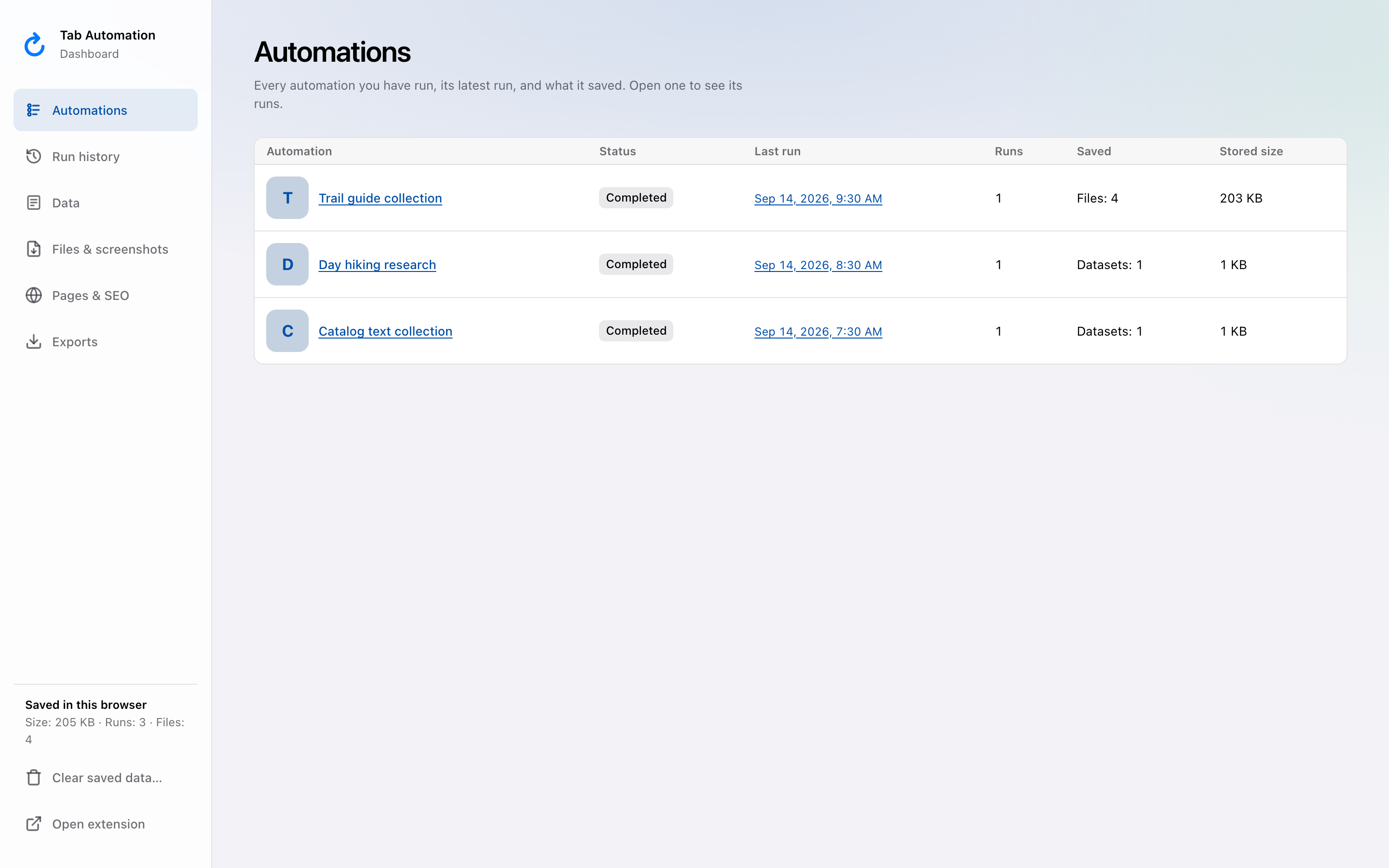
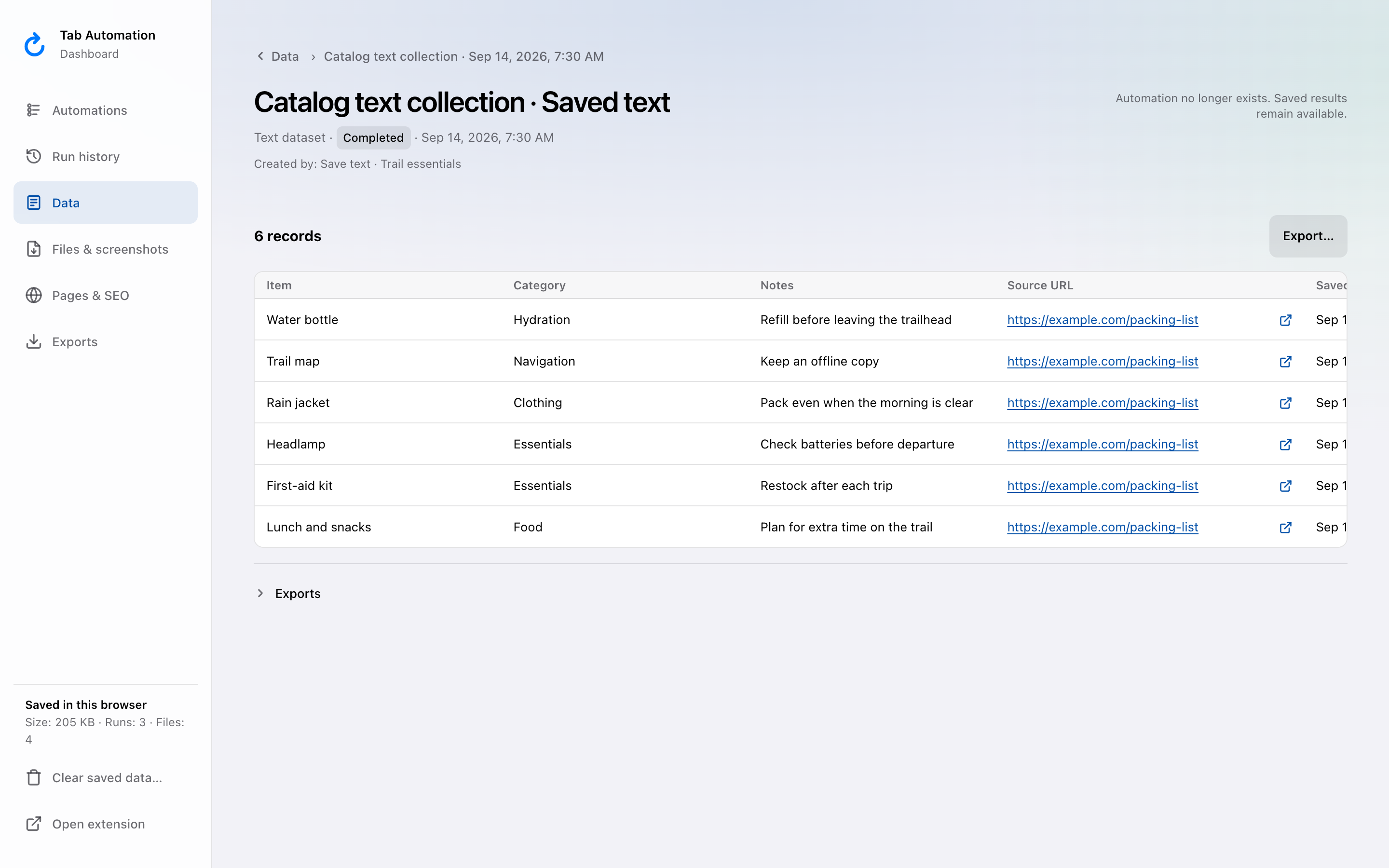
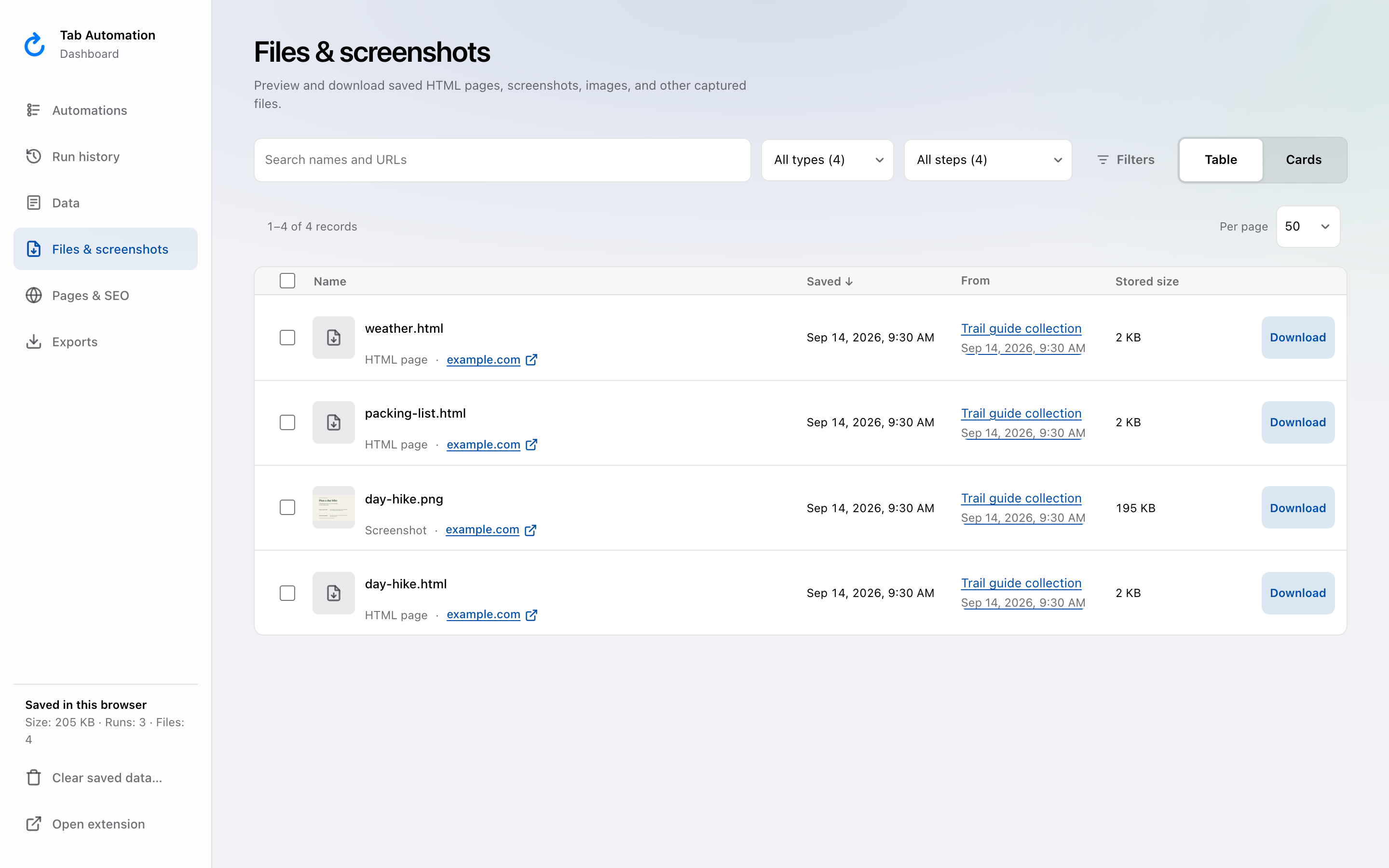
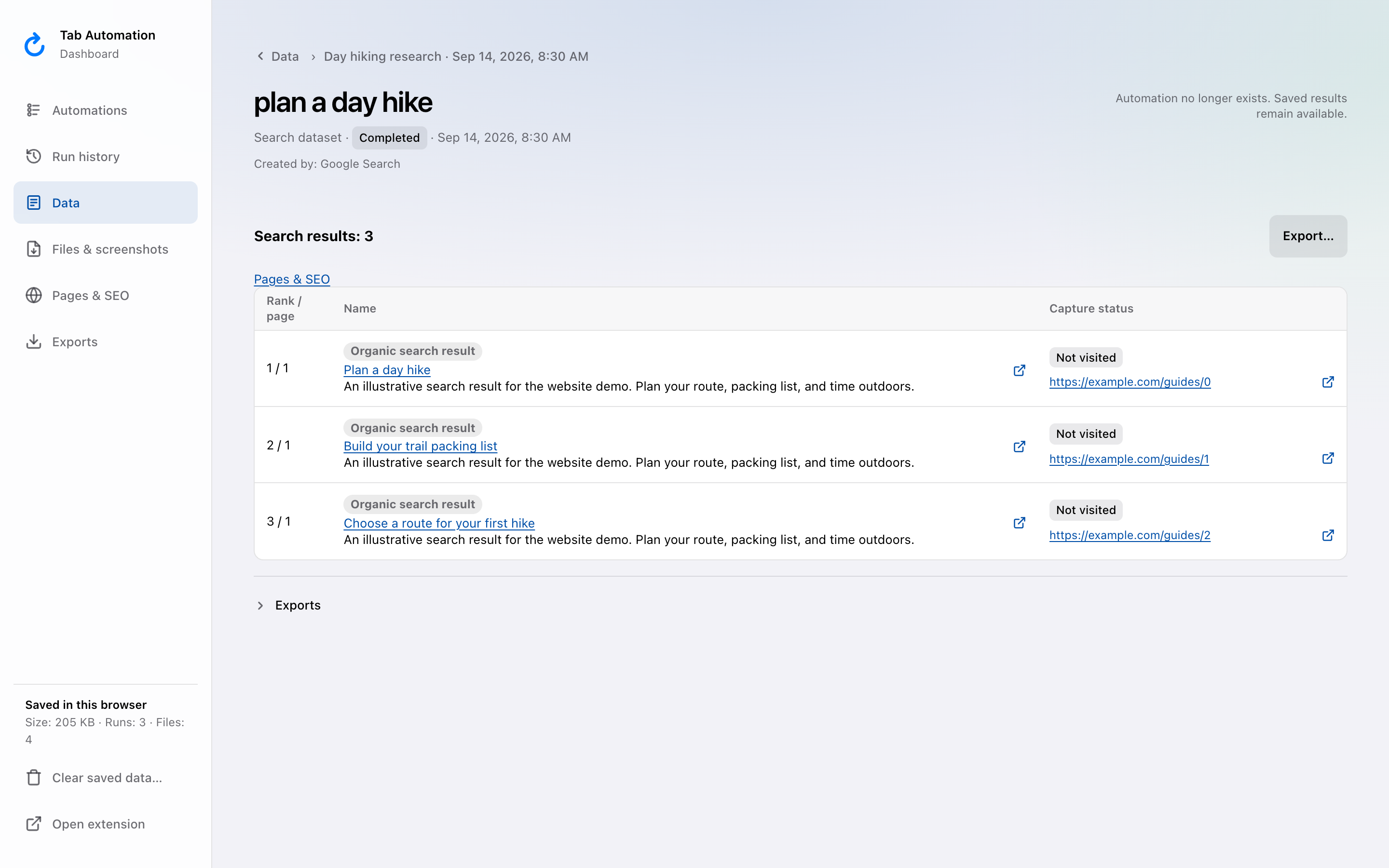
All screenshots show the real product with illustrative demo data. The search results are not a live ranking report. Open any image to inspect it at full size.
What saves to the Dashboard
Five steps keep their output in the Dashboard. Add Step groups them under Saves to Dashboard, and their cards in the editor carry the same badge. Other steps, including Set Value, save nothing there. Saved output stays on this computer until you delete it; nothing downloads until you ask.
| Step | Where it appears | How it exports | Folder in a run ZIP |
|---|---|---|---|
| Save Text | Data, as a Text Dataset | Export… as CSV, JSON, Markdown, or ZIP | Data |
| Save Images | Files & screenshots, as image files | Download one, or select several for a ZIP | Images |
| Save Page | Files & screenshots, as an HTML page; its metadata in Pages & SEO | Download HTML, or select several for a ZIP; Export metadata… as CSV, JSON, or Markdown | Pages |
| Take a Screenshot | Files & screenshots, as a PNG screenshot | Download one, or select several for a ZIP | Screenshots |
| Download File | Files & screenshots, typed by file (PDF, archive, image, and so on) | Download one, or select several for a ZIP | Downloaded files |
A single dataset exports in any of its formats. Several selected results, or a whole run, export as one ZIP. Inside it, output is filed under the automation and run time, then in the folder shown above. Exporting a whole run also adds its activity.json log, and a manifest.json at the top of the archive lists its contents. Open a run in Run history to see what each of these steps saved in that run.
Review text as a dataset
Save Text reads the fields you configure and appends one row per execution. Each Save Text step creates its own dataset within a run. Column names, source pages, and missing-field warnings stay with the rows.
Data lists saved text and Google Search datasets; the type menu separates Text Dataset from Search Dataset. Export a text dataset as CSV, JSON, Markdown, or a ZIP, or include it in a whole-run ZIP. Dataset tables are for browsing; they do not edit the captured data.
Inspect saved files before downloading
Files & screenshots holds HTML pages, screenshots, images, and files captured by Download File. Narrow it by type, switch between a table and cards, preview images, and open details for source and step information. Download one file, or select several and choose Export… for a ZIP.
Saved HTML opens one page with its metadata, capture details, Download HTML, and Export metadata…. HTML previews show saved source as highlighted text. They do not render or execute the captured page. The preview displays up to 256 KiB; downloading the original retains its saved bytes.
Saving a file during an automation does not start a Chrome download. The export folder in Settings or on a step suggests the path used when you later download it.
Google Search preview — Coming soon
Google Search is not yet available, including with an Explorer License. This section previews the planned workflow.
In Data, choose the Search Dataset type for output from the Google Search workflow. Open a run’s results to review collected blocks, page-relative rankings, source capture status, and available retained content.
In the worksheet, New search accepts search terms or a supported Google results link and opens a new tab. Current search uses the active supported results page. View search results opens the retained dataset, including partial and failed runs.
Choose Export… for JSON, CSV, research Markdown, or a ZIP. Markdown links observations to retained source text; it does not call a model or invent findings. The Pages & SEO link scopes page metadata to that run, with a route back to the search results.
Explore Pages & SEO
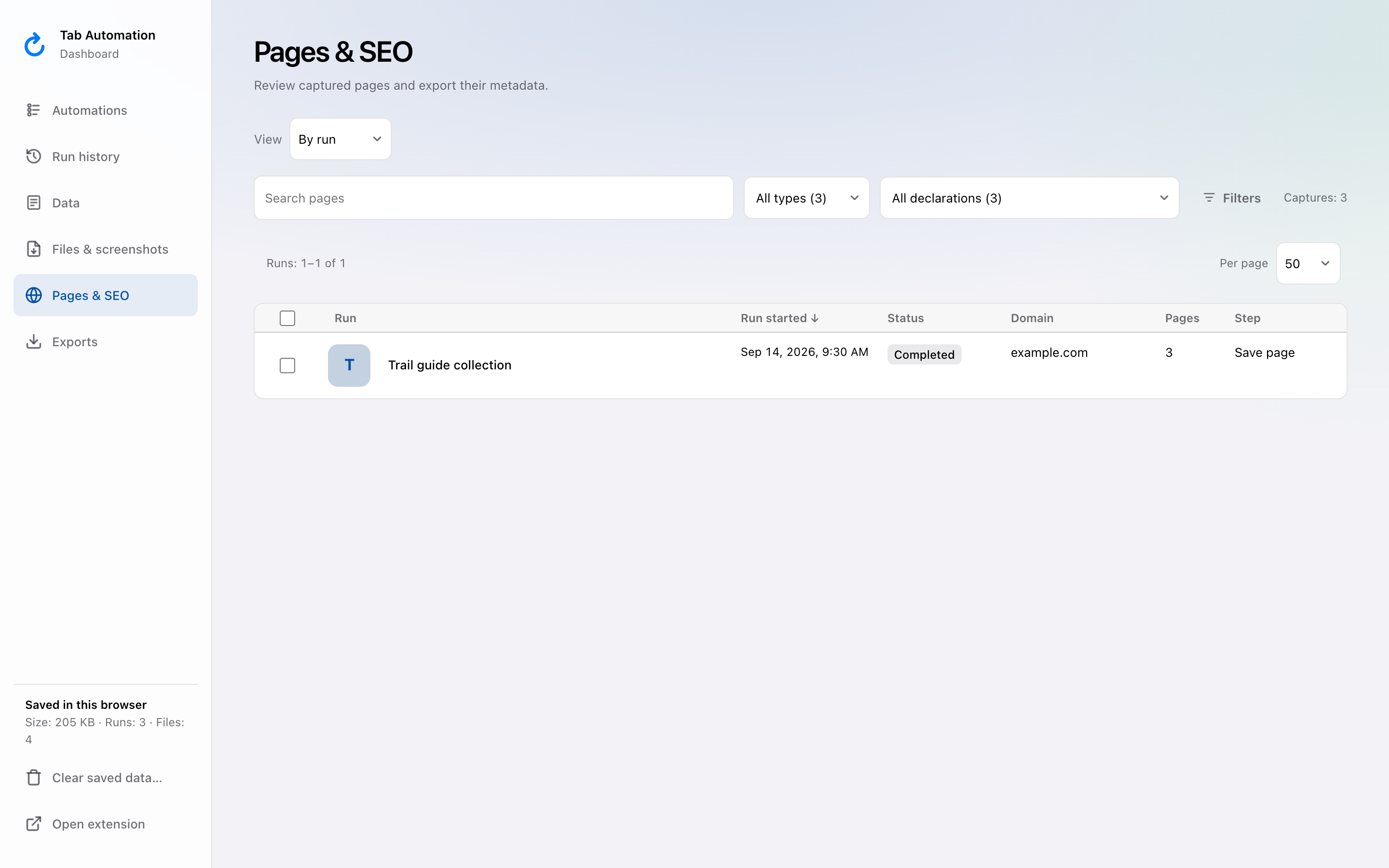
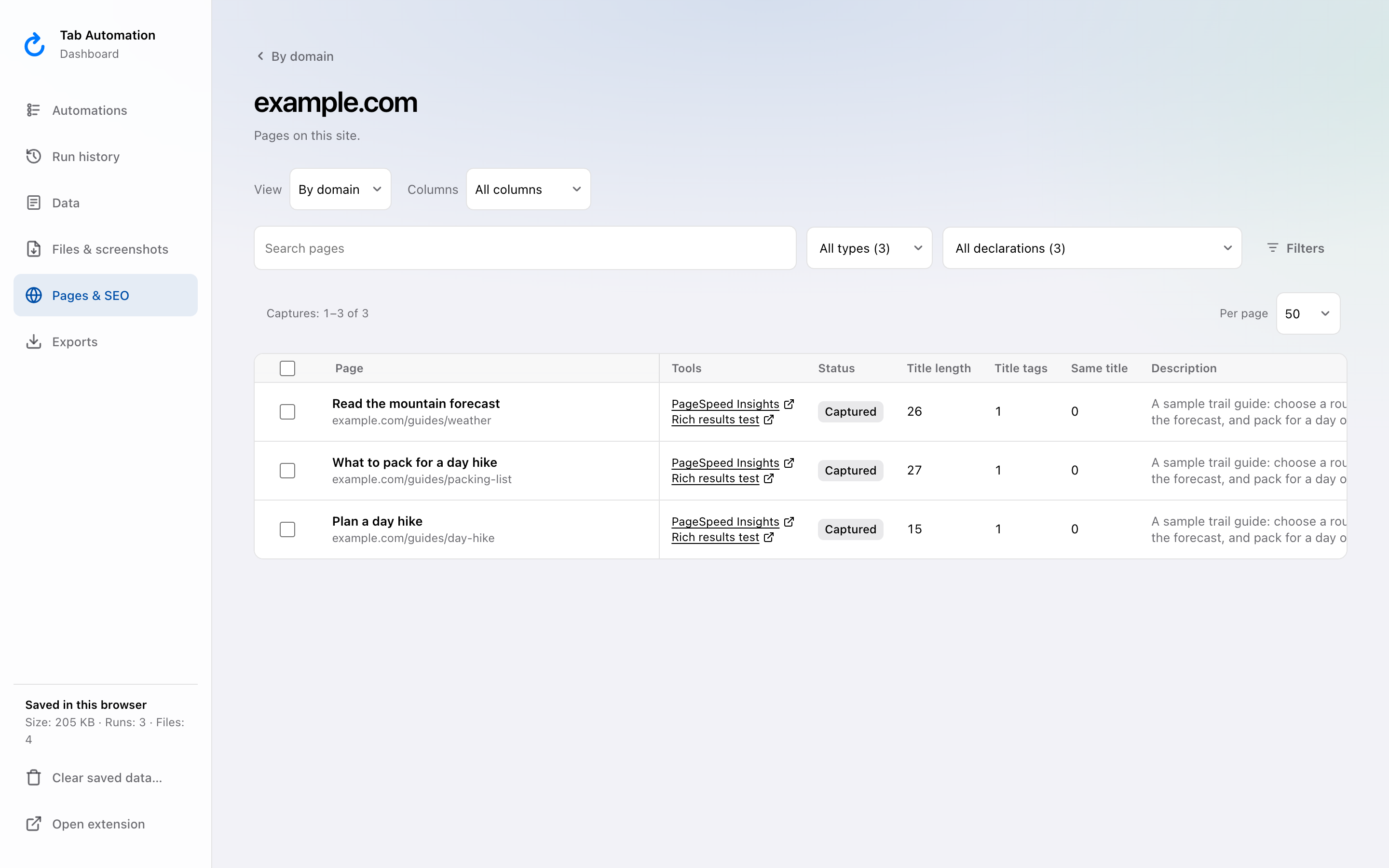
Save Page captures and enabled Google source visits collect on-page metadata automatically. Pages & SEO opens By run: each run with its start date, status, domains, page count, and the step that saved it. Choose View → By domain or All pages for other groupings; opening a group shows its matching pages directly. Counts describe retained captures, so the same URL captured in different runs remains separate.
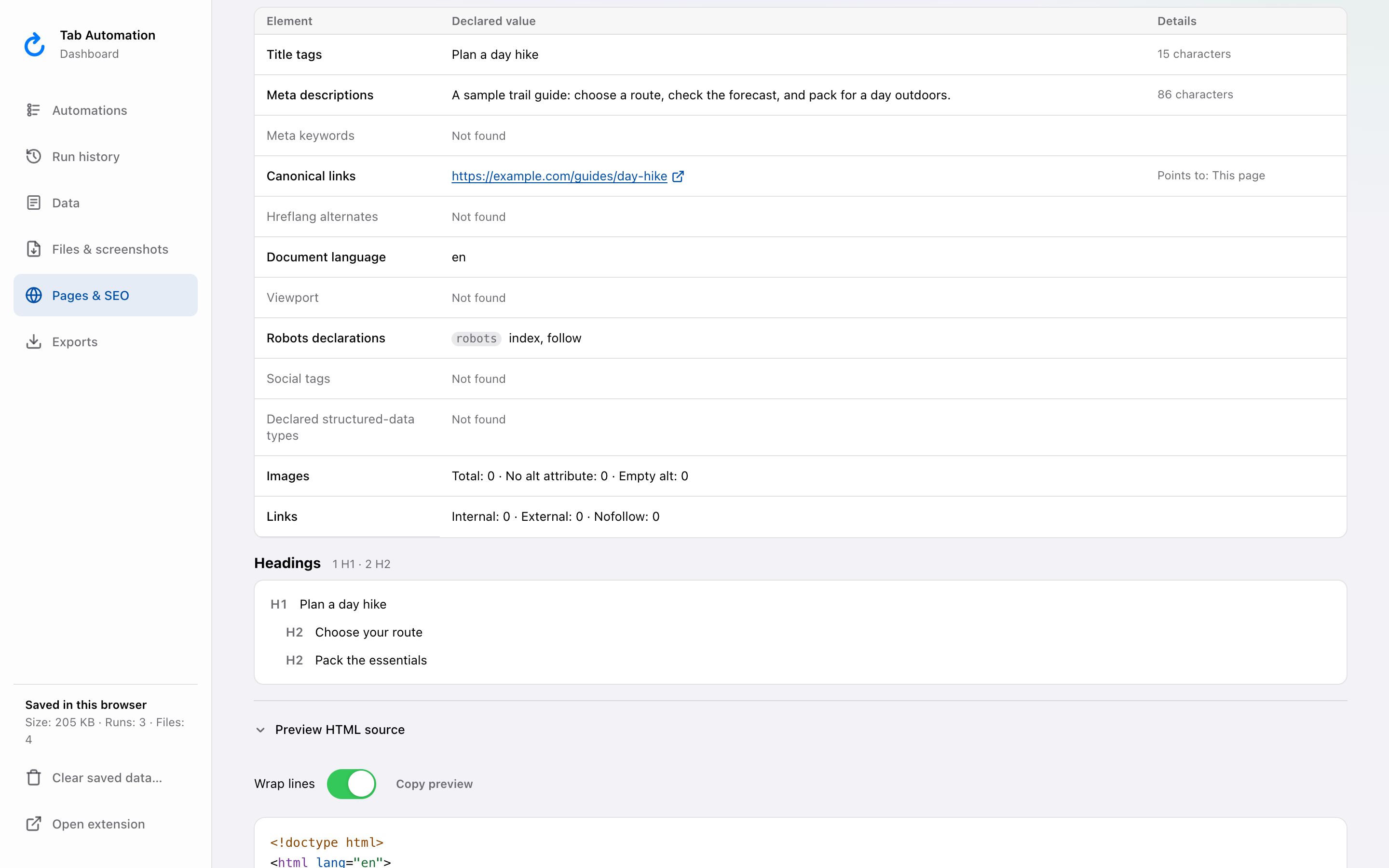
Open a page for a table of its title tags, descriptions, canonical links, hreflang alternates, language, viewport, robots declarations, social tags, and declared structured-data types, with counts of images missing alt text and of internal, external, and nofollow links, followed by its heading outline. Google’s result titles and snippets remain separate from the destination page’s metadata. These are captured declarations, without SEO scores, indexing verdicts, or structured-data validation. To test a page further, PageSpeed Insights and Rich results test open Google’s tools in a new tab with that page’s address.
Choose Export metadata…, then select a format and either selected captures or all matching captures. Filtered exports include matching captures across every page of results. Relevant ZIP exports also include SEO reports.
Inspect retained HTML and retry metadata
Expand Preview HTML source when a saved capture is available. Retry metadata inspection retries one failed or unavailable inspection; Retry metadata for this run works across a run. Retries use retained HTML without requesting the live page. Retry is offered only when saved HTML is available. Missing HTML gets an explanation, and a truncated capture remains partial. Earlier retry outcomes are available under Metadata recovery history.
Saved HTML inspection reads at most 16 MiB, has a 10-second parser timeout, and retains up to 256 KiB of metadata. Capture and inspection limitations remain visible. A retry continues if you close the Dashboard; use Cancel to stop it.
See what each step saved
Run history shows each execution’s start time, status, and output count. Open a run to see Saved by each step: every step in that run’s automation that saves to the Dashboard, in order, marked Saved, Partly saved, Failed, Nothing saved, or Did not run. File steps show their saved and failed file counts; Save Text shows its columns and rows. Open table opens the Saved Text table on its own page, and Show files brings the run’s files into view.
Below the summary, expand Activity and logs for diagnostic events. It opens on its own when the run or one of its saving steps failed. Exports lists earlier exports of that run. Running automations remain editable in the side panel.
Export when you are ready
Export… opens one dialog. Pick a scope when there is a choice, then a format: CSV for spreadsheets, JSON for scripts and other tools, Markdown for notes, or ZIP for every format with saved files and activity logs. A run, or a selection of several results, exports as a ZIP. Under Include, a ZIP lists each content type in the scope with its count, such as data, screenshots, and images; switch one off to leave it out. Files that cannot be exported are listed in the archive’s manifest.json.
A ZIP mirrors the Dashboard. Each run gets a folder named for its automation and start time, such as Prices/2026-10-17 06-32-01/. Inside are Data for Save Text and Google Search tables, Screenshots, Images, Pages, and Downloaded files, each filled by the step that saved it, plus the run’s activity.json. The archive also carries a manifest.json and, when relevant, an SEO report. Folder names follow the extension’s language.
Finish or pause a running run before exporting its retained output. An export of a paused run captures what has been saved so far and stays labeled partial. Resuming the automation does not change that export’s snapshot.
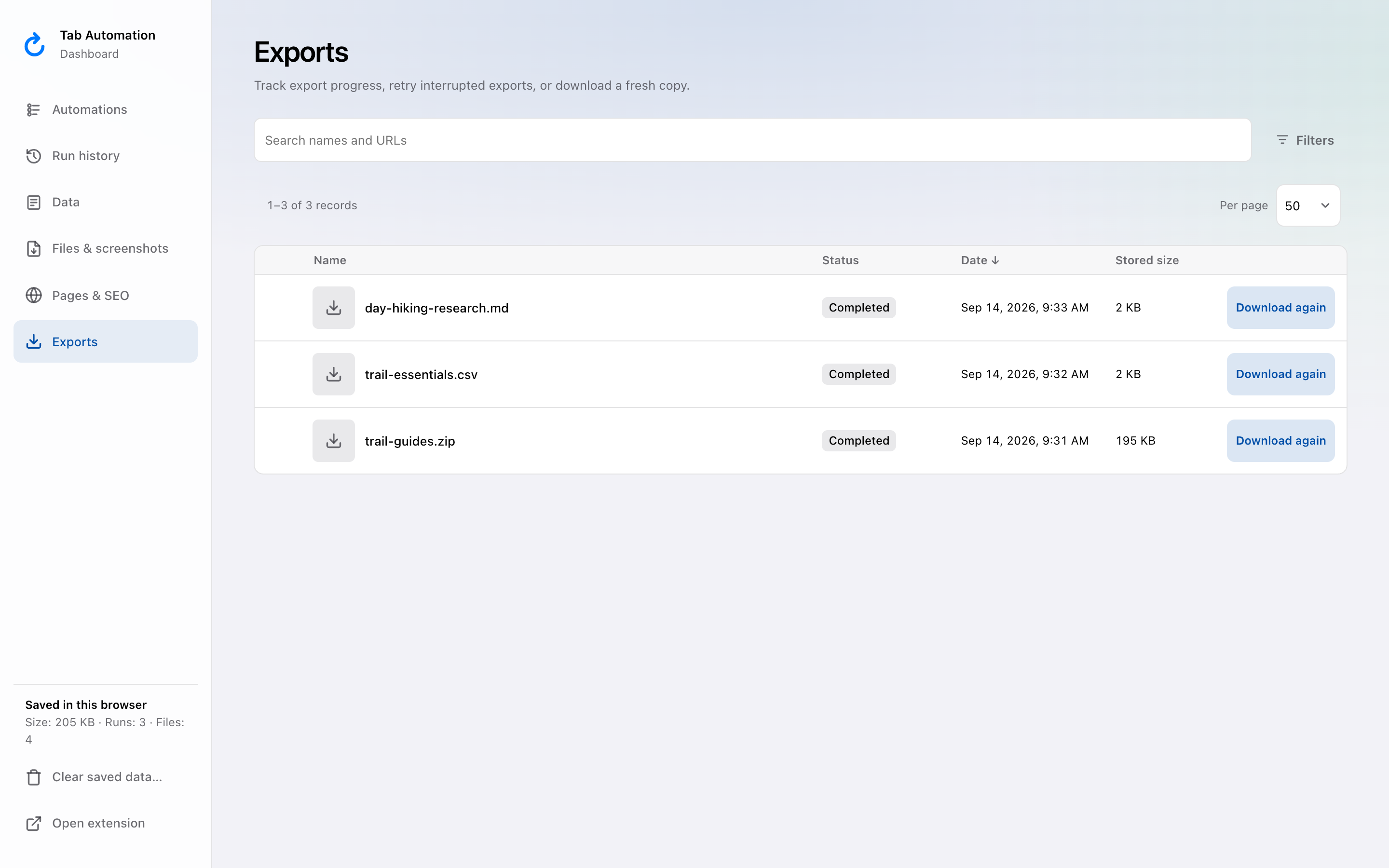
Exports tracks preparation, download progress, completion, and errors. Use the available cancel or retry actions when needed. A retry or download-again action creates a new export from the currently retained originals.
Saved on this computer
Results remain in extension-owned local storage until you delete them. Rerunning or removing an automation preserves its retained history and output. Deleting a run removes its owned results; deleting one dataset preserves sibling datasets and files. The sidebar shows how much is saved; choose Clear saved data… to delete every retained result after confirming. Automations, Values, preferences, and files already downloaded remain.
Uninstalling the extension or clearing its storage removes local results. Downloaded copies remain independent. Temporary export files are cleaned after completion or cancellation; download history remains until cleared.
Storage failures pause the affected save. Review the reported cause, free space if needed, and retry from the side panel. Successful earlier steps are not replayed. There is no cloud or device sync. See Privacy for storage, page access, license checks, and webhooks.
Start with the steps reference, the side-panel tour, or the Changelog for recent additions.