To export title tags and meta descriptions from an XML sitemap, use the sitemap as the URL source, visit each selected page, save its HTML, and export the captured metadata as CSV. In Tab Automation, that sequence is For Each Link → Sitemap → Save Page.
The export also includes headings, canonical declarations, robots directives, language, social tags, and declared structured-data types. It is useful for a content inventory, template check, migration review, or a first look at a section of a site. It does not grade the pages or decide what should be indexed.
This walkthrough uses a dated five-page product fixture built from current metadata for URLs in https://tabautomation.app/sitemap.xml on 18 September 2026. It demonstrates the real controls and result shape; it is not a live crawl report. Start with a similarly small sample before visiting a large sitemap.
Use the sitemap as the page list
You’ll need Tab Automation installed. Custom automations are free; Explorer unlocks the full Dashboard. Google Search is coming soon. Open a regular page from the site you want to inspect, then:
- Open the Tab Automation side panel and choose New automation.
- Under Tab & startup, turn off Always start this automation in a new tab and select the open page.
- Choose Add Step → For Each Link.
- Select Sitemap, enter the public sitemap URL, and choose Collect links.
- Review the collected pages before adding the capture step.
For a first pass, use Limit how many or open URL filters and set an allowed hostname or path prefix such as /blog/. URL filters and Ignore apply before Up To, so ignored URLs consume none of the limit. A child sitemap is another good boundary when a sitemap index covers several page types.
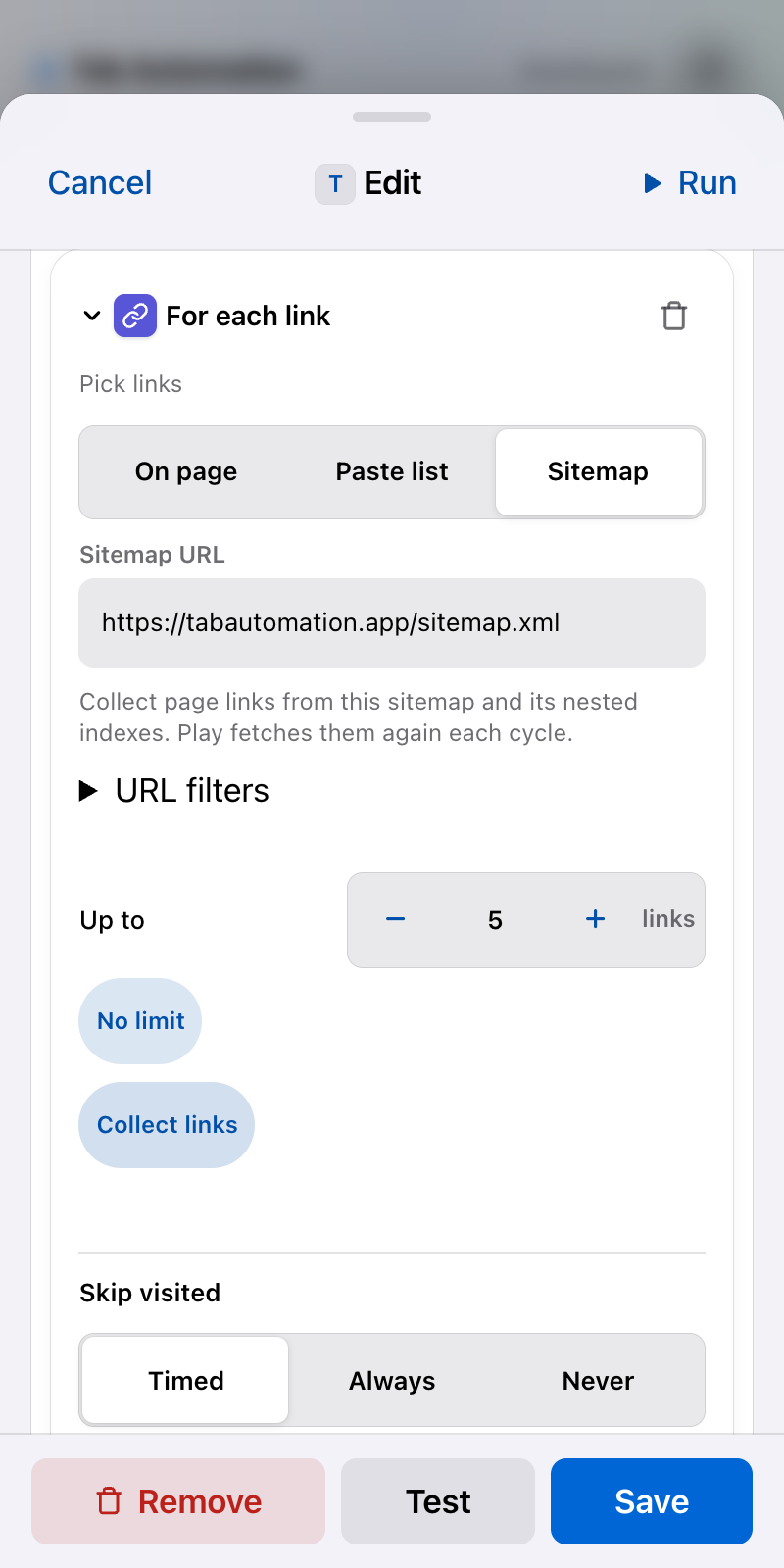
A five-page sample keeps the first run easy to verify. Open the full-size image for the exact fields.
The sitemap source accepts public UTF-8 XML page sitemaps and sitemap indexes, including gzip-compressed files and nested indexes within the documented limits. It collects absolute HTTP(S) URLs from url/loc entries. It does not accept an uploaded sitemap, pasted XML, an HTML sitemap, a plain-text URL file, or a sitemap that requires credentials. The For Each Link reference lists the supported formats and limits.
Add Save Page inside Each Link
Add Save Page inside Each Link. Saving the page retains an HTML result and automatically creates a metadata record from that same HTML.
Choose the mode based on what you need to inspect:
| Capture mode | Use it when |
|---|---|
| Source HTML | You want the HTML returned by a fresh request for the current URL. It can differ from the first response. |
| Rendered HTML | JavaScript changes the title, description, canonical, robots tag, headings, or other page content. |
Rendered mode records the current main-document DOM after the page loads and after earlier interaction steps have run. Under Advanced, an optional CSS selector can hold the step until an expected element exists; an extra delay can allow late content to settle. A readiness timeout fails instead of quietly saving early.
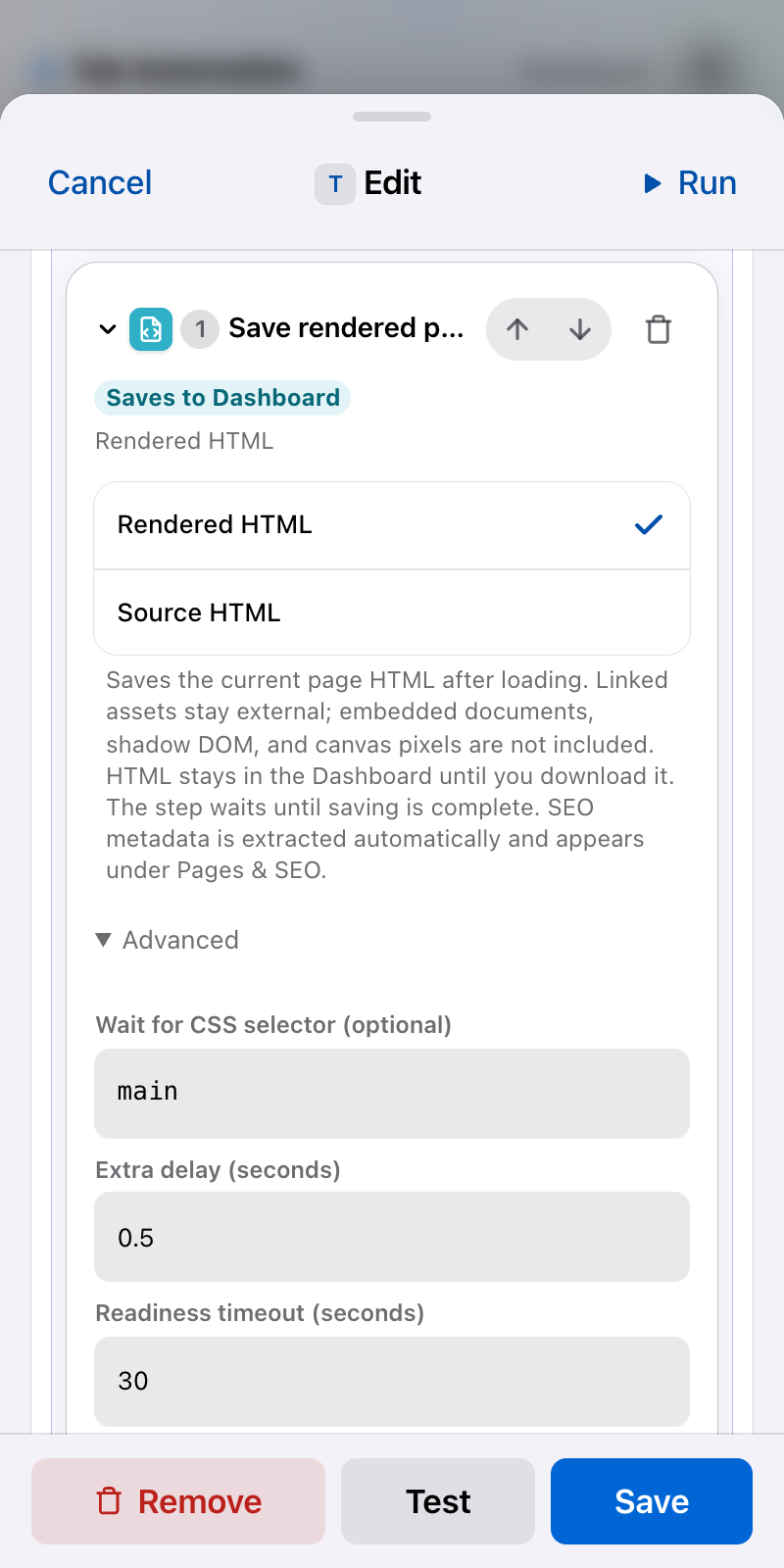
Rendered HTML is useful when page JavaScript changes the declarations you want to inspect.
For a server-rendered site whose metadata is already in its response, Source HTML is the simpler choice. Google also distinguishes the original response from the final HTML after scripts run in its guide to viewing rendered source.
Rendered HTML is not a complete offline archive. Linked images, stylesheets, scripts, and fonts remain external, and iframe documents, shadow DOM, canvas pixels, and live form properties are not reconstructed.
Run one pass
- Keep Repeat off in the End block so the automation walks the sitemap selection once.
- Add Wait / Delay inside Each Link before Save Page if the site needs more time per destination.
- Choose Save & run and keep Chrome open.
- Watch the automation row or Activity for page and step failures.
Each collected URL opens in the same assigned tab. The next URL starts after the inner steps finish. A run does not open all pages in separate tabs, and the sitemap is fetched again when the run starts.
If one sitemap in a nested index fails to load or parse, collection stops rather than visiting a partial list. If an individual page fails later, check the run before treating the export as complete.
Review and export the metadata
When the run finishes, open Dashboard → Pages & SEO. It opens By run, so open the sitemap run to see its pages, or choose View → All pages and filter.
The table shows the source URL, first title, first meta description, and first H1. Open a page for all captured declarations, including additional titles or descriptions, H2–H6 headings, canonical values, hreflang alternates, robots and Googlebot directives, language, viewport, Open Graph and Twitter tags, and declared JSON-LD, microdata, or RDFa types. It also counts images without alt text and internal, external, and nofollow links.
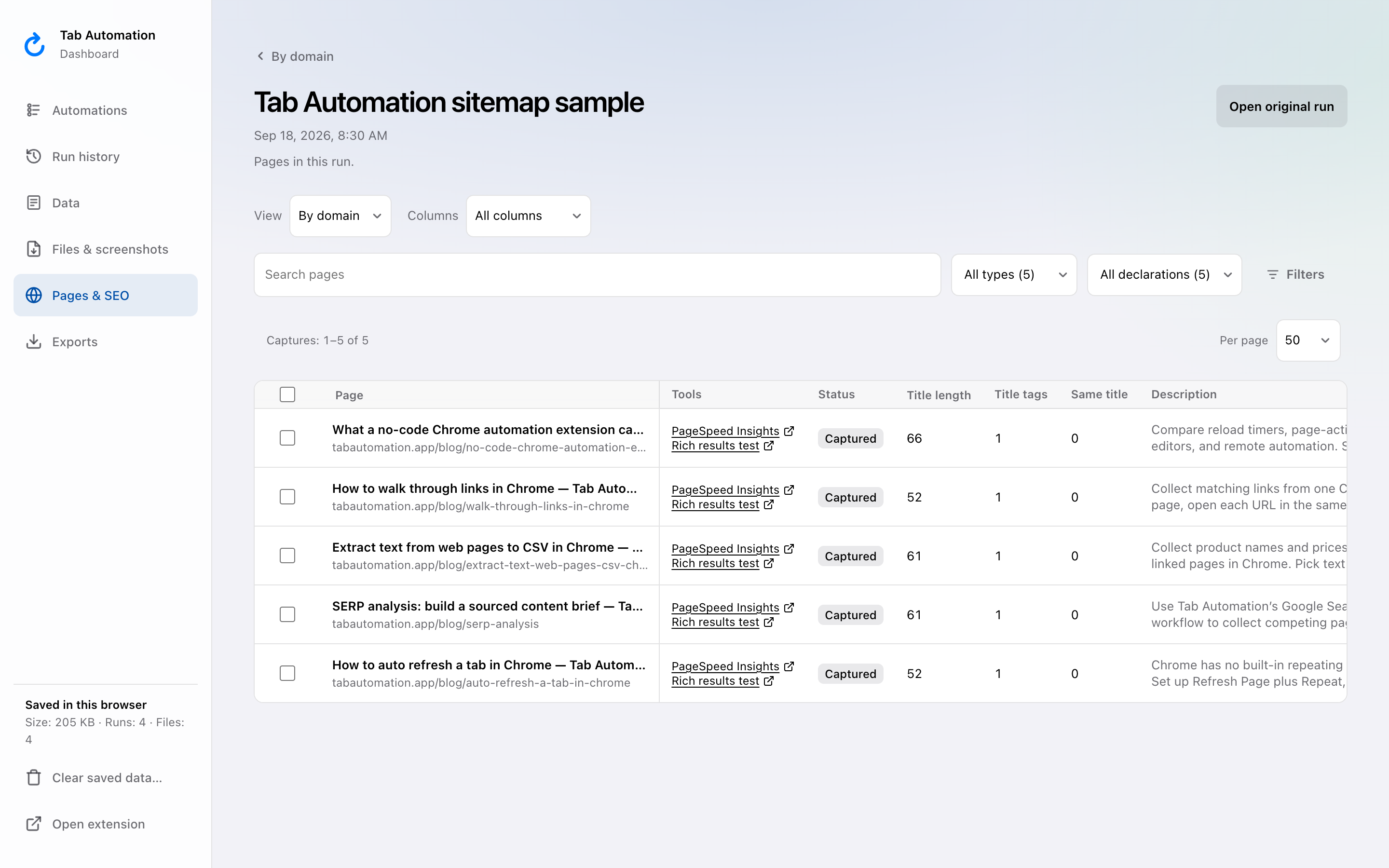
Dated product example using five current Tab Automation blog URLs and their metadata on 18 September 2026.
Choose Export metadata…, select CSV, and choose all matching captures for every capture in the current view. You can instead select runs, domains, or individual pages and export selected captures. Export is disabled while the run is running; finish or pause it first.
The CSV has convenient first-value columns for title, description, first_h1, canonical_url, language, and viewport, plus count columns such as images_missing_alt, internal_links, external_links, and nofollow_links. JSON columns preserve every captured title, description, heading, canonical, robots declaration, social tag, and structured-data type. It also includes the source and final URLs, capture mode and status, timestamps, run attribution, and any inspection limitations.
Turn the CSV into a review list
Open the CSV in your spreadsheet and keep the URL beside every finding. Useful first passes include:
- Filter blank
title,description, orfirst_h1cells. - Sort
titleanddescriptionto bring repeated values together. - Compare
urlwithcanonical_urland inspect unexpected cross-page or cross-domain targets. - Search
robots_jsonfornoindexand check whether it is intentional. - Group URLs by template or path before deciding whether a repeated pattern is a page problem or a shared-template problem.
These are review prompts, not automatic verdicts. Tab Automation records what the captured HTML declares; it does not score lengths, identify duplicates for you, test HTTP headers, crawl internal links, or verify index coverage. A missing meta description is also not proof that a search result will have no description: Google says snippets are primarily generated from page content and may use the meta description when it better describes the page. Google’s snippet documentation explains that distinction.
Likewise, a captured <title> is one input rather than a promise about the displayed result. Google can also use the visible page title, headings, og:title, anchor text, and other signals when it generates a title link. See Google’s title-link documentation.
Know the collection boundaries
- Chrome must stay open while the automation visits pages. This is not a cloud crawler.
- Sitemap fetching does not send site credentials. Public pages that later require the browser session can still differ from what an anonymous crawler receives.
- Save Page visits URLs sequentially in one tab. Use a small child sitemap, path filter, or limit before attempting a large inventory.
- Rendered captures are limited to 16 MiB. Metadata inspection reads at most that amount, stops after 10 seconds, and retains up to 256 KiB of metadata. Partial and failed inspections stay labeled.
- Results remain local in this browser until deleted. Download the CSV or another export before uninstalling the extension or clearing its storage.
- The inventory reports HTML declarations. It does not replace Search Console data, server logs, a complete technical crawl, or Google’s selected canonical and indexing decisions.
For a list of pages discovered from search results instead of your own sitemap, use the SERP analysis guide. To collect visible product fields rather than document metadata, follow Extract text from web pages to CSV.
For a redesign handoff, use this report alongside the screenshots and HTML in a website redesign content inventory. Keep your captured metadata separate from decisions about owners, rewrites, and new destinations.