Chrome has no built-in setting to auto refresh until text appears. In Tab Automation, add Refresh Page, add Wait / Delay set to Until, turn Repeat on, and click Save & Run. Turn on Pause when this wait succeeds to stop reloading once the phrase is found. Without that option, Repeat starts another cycle even after a match.
Keep Chrome open during the run. If the wait times out, the automation continues to Repeat and tries again after the cycle wait.
See a missed check become a successful match
We ran this example in an unpacked test build of Tab Automation 1.0.0 against a controlled workshop status page. It initially said Fully booked. After the first Wait Until timed out, our test page returned Places available on the next reload. The automation matched that phrase and paused; the page received no further requests during a two-second observation after the pause.
The configuration was Refresh Page → Wait / Delay → Until → Matches, checking whether #status contains Places available. We used a 1-second Fixed timeout, enabled Pause when this wait succeeds, and enabled Repeat with a 1-second Fixed wait and no cycle limit. These are requested waits, not an exact reload schedule. Chrome allows shorter alarm intervals for unpacked extensions; installed extensions can wait longer. See Repeat before choosing an interval for your site.
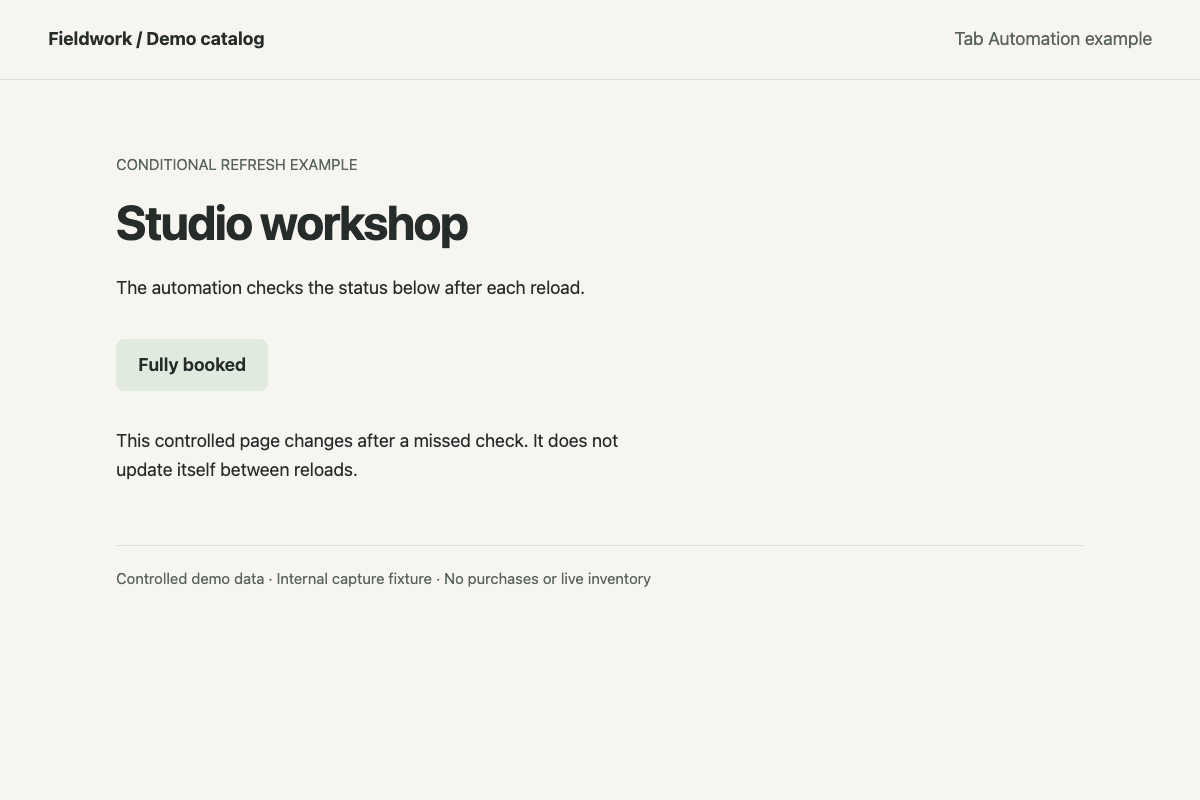
Before: the selected status has no matching phrase. The page stays unchanged between reloads.
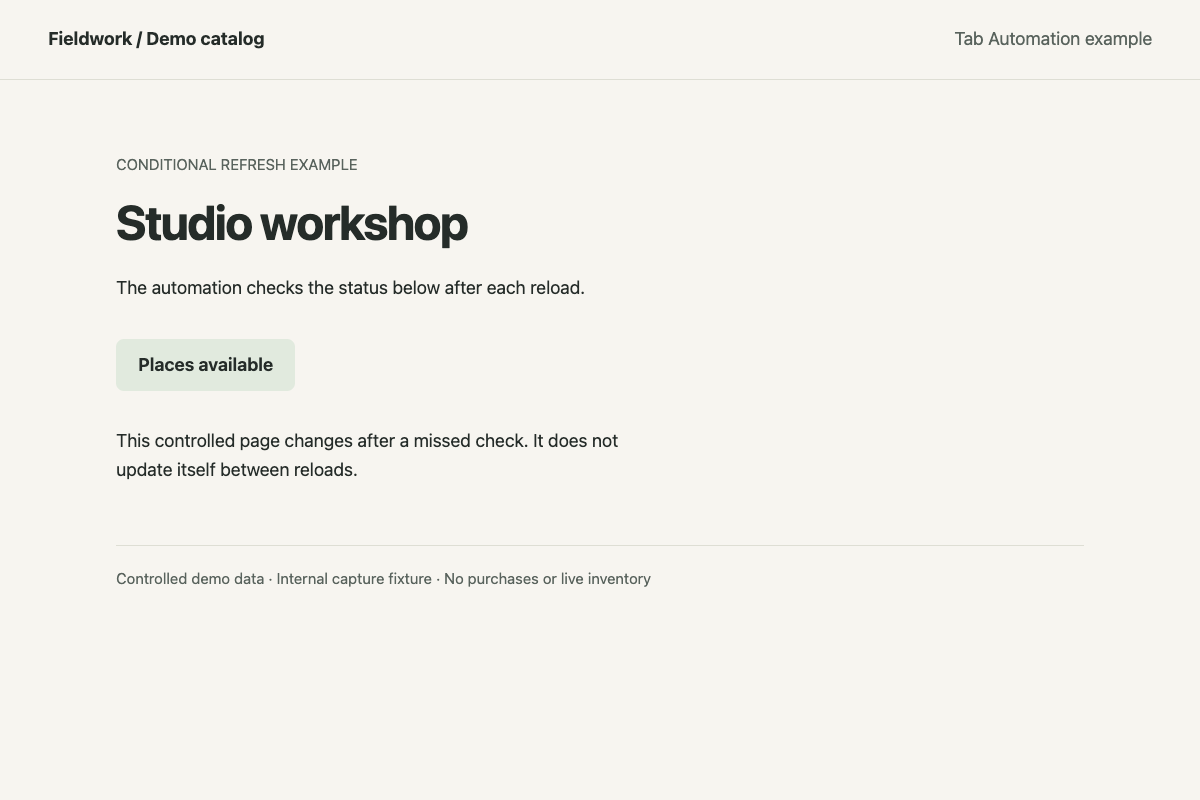
After: the phrase is present. Activity recorded the earlier timeout and the subsequent pause on a successful wait.
These are actual browser captures of internal demo data, not a live availability monitor. This example uses pause-on-success without an alert; the notification options below have separate behavior.
To try the same sequence on a page you use, install Tab Automation and follow the setup below. Chrome must stay open.
See how it worksReload until a phrase is on the page
You’ll need Tab Automation installed. Custom automations are free; Explorer unlocks the full Dashboard. Google Search is coming soon. The side-panel tour covers first-time setup.
- Open the queue, listing, or status tab you want to watch.
- Open Tab Automation from its toolbar action. The extension opens in Chrome’s side panel.
- Click New Automation. Under Tab & Startup, turn off Always start this automation in a new tab, then pick the open tab.
- Click Add Step, then choose Refresh Page.
- Add Wait / Delay. Switch it to Until.
- Choose Matches. In the condition, select Page, use Pick on page for a status element or Whole page to check the document body, choose contains, and compare with a Text value containing your phrase. Use Appears instead only when the element itself is absent until the update.
- Set a timeout (Fixed or Random range, 1–3600 seconds). Until checks repeatedly with about 250 milliseconds between polls. A timeout records a warning and the run continues.
- Turn on Pause when this wait succeeds to stop on a match, then turn on Repeat. Repeat starts off; enabling it uses a 30-second Fixed wait. That wait is the gap before the next cycle, after Until finishes or times out.
- Click Save & Run.
Until checks the currently loaded page repeatedly. If the phrase is already there after the reload, Until can succeed on an early poll. If it is not there, the timeout lets Repeat start another cycle.
See auto refresh vs page monitor if you are unsure whether the page needs a reload or already updates in place.
Stop when the text is found
Turn on Pause when this wait succeeds on that Until step. Success pauses the automation. Later steps in that cycle do not run. A timeout does not pause.
Pause on the card also stops a run you started. Repeat can stop after a cycle count or after a duration to limit how long it keeps trying when the phrase never appears. See Repeat.
Notify when the text is found
An alert needs its own condition. Simply reaching the end of a wait does not mean the phrase was found.
Do not put Send Alert after Until if Pause when this wait succeeds is on. A successful wait skips later steps, so that alert does not fire on success. A timed-out wait continues the graph, so that same alert does fire on a miss.
Use one of these instead:
- Alert and stop. Until plus Pause when this wait succeeds, then turn on Repeat When it stops. That control also fires for other pauses and stops, so check Activity to confirm why the automation paused; the stop alert alone does not prove that the phrase appeared. It can send a desktop notification, play a sound, or POST a webhook. Both Repeat alert switches stay off until you enable them.
- Alert every cycle the text is already there. Refresh Page, then If / Else, then Send Alert in Then. If evaluates once after the reload. New If steps do not pause. Repeat keeps going until you pause it, or until a cycle count or duration ends.
Watching a product page for an in-stock phrase uses this same pause. Get a back-in-stock alert shows which status text to match and what the alert says.
For Slack, Discord, or ntfy setup, follow send a Slack webhook when a Chrome page changes. If a desktop Test is silent, follow Chrome notifications not working.
When the page updates without a reload
Skip Refresh Page when the tab already live-updates — a counter, a chat line, or a status that changes in place.
Use Wait / Delay Until alone. Appears, Disappears, Changes, or Matches still check repeatedly with about 250 milliseconds between polls until success or timeout. Pause when this wait succeeds still pauses only on a match.
An automation containing only Refresh Page and Repeat never reads the page. If you only need a fresh load you will read yourself, use the one-tab auto-refresh guide.
Auto refresh until text appears without an extension
For a temporary test, open DevTools, select Console, and paste:
const target = "available";
if (document.body.innerText.includes(target)) {
  alert("Found!");
} else {
  setTimeout(() => location.reload(), 30000);
}
Change "available" to the phrase you care about. The delay is 30,000 milliseconds, or 30 seconds.
This checks once and, if needed, reloads once. The new document does not run the check again. You would need to paste it into the console after each reload.
Hidden tabs add another limitation: Chrome can throttle page timers. An extension timer lives outside the page, so it can reload the assigned tab after you switch away. See auto refresh a background tab.
If the expected text never appears
Check the selected element first. A phrase elsewhere on the page will not match a different status element, and a changed page layout may require picking the element again. Use Whole page only if a match anywhere in the document body is useful.
If the page shows a sign-in screen or captcha, handle it in the tab before resuming. This recipe does not detect or solve challenges. Keep Chrome open during the run; the checks stop when you quit it.
Open Activity to distinguish a timed-out wait from a successful match or an earlier failure. If the automation ran only once, check that Repeat is enabled.
Automation settings stay on this computer. Read the privacy policy for permissions and data handling.