Chrome has no built-in back-in-stock alert. In Tab Automation, add Refresh Page, check the product’s own status text, turn Repeat on, and send the alert from When it stops or from Send Alert. Keep Chrome open. You still add the item to the cart and check out.
| Goal | What to add |
|---|---|
| Alert once, then stop reloading | Wait / Delay Until, Pause when this wait succeeds, and Repeat When it stops |
| Alert on every reload that matches | If / Else with Send Alert in Then, and Repeat on |
When it stops also runs when you pause the automation yourself, when a click fails, or when the run finishes. The message is This automation paused. Open Activity and look for Pause when this wait succeeded before you treat it as a restock. Auto refresh until text appears explains why a Send Alert step placed after a paused Until does not fire on a match.
See a sold-out page come back in stock
We ran this example in an unpacked test build of Tab Automation 1.0.0 against a controlled product page. It started as Sold out, with Add to cart disabled. The first wait timed out. On the next reload the status was In stock, the button was enabled, and the automation paused. One webhook was accepted. The page received no further requests during a two-second observation after the pause, and the webhook was not sent again.
The configuration was Refresh Page → Wait / Delay → Until → Matches, checking whether #stock contains In stock. Pause when this wait succeeds was on. Repeat used a 1-second Fixed wait and no cycle limit. When it stops had Webhook on. These are requested waits, not an exact reload schedule. Chrome limits installed-extension alarms to once every 30 seconds and may delay them further; an unpacked extension can wait less. See Repeat before you pick an interval for a store.
The webhook title ended in Paused, and the message was This automation paused. It included the page address. It did not include the words In stock. Desktop notification uses that same title and message.
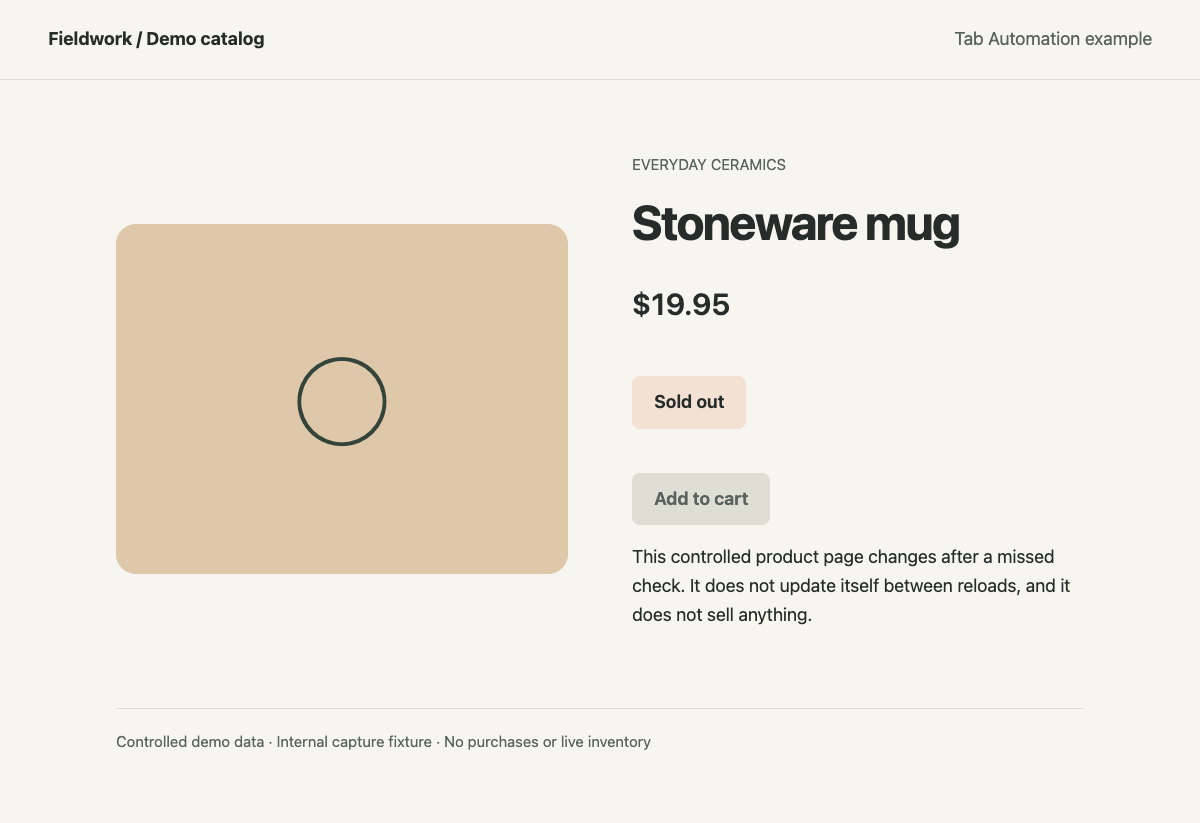
Before: the status says Sold out. Add to cart is disabled, and its label is already Add to cart.
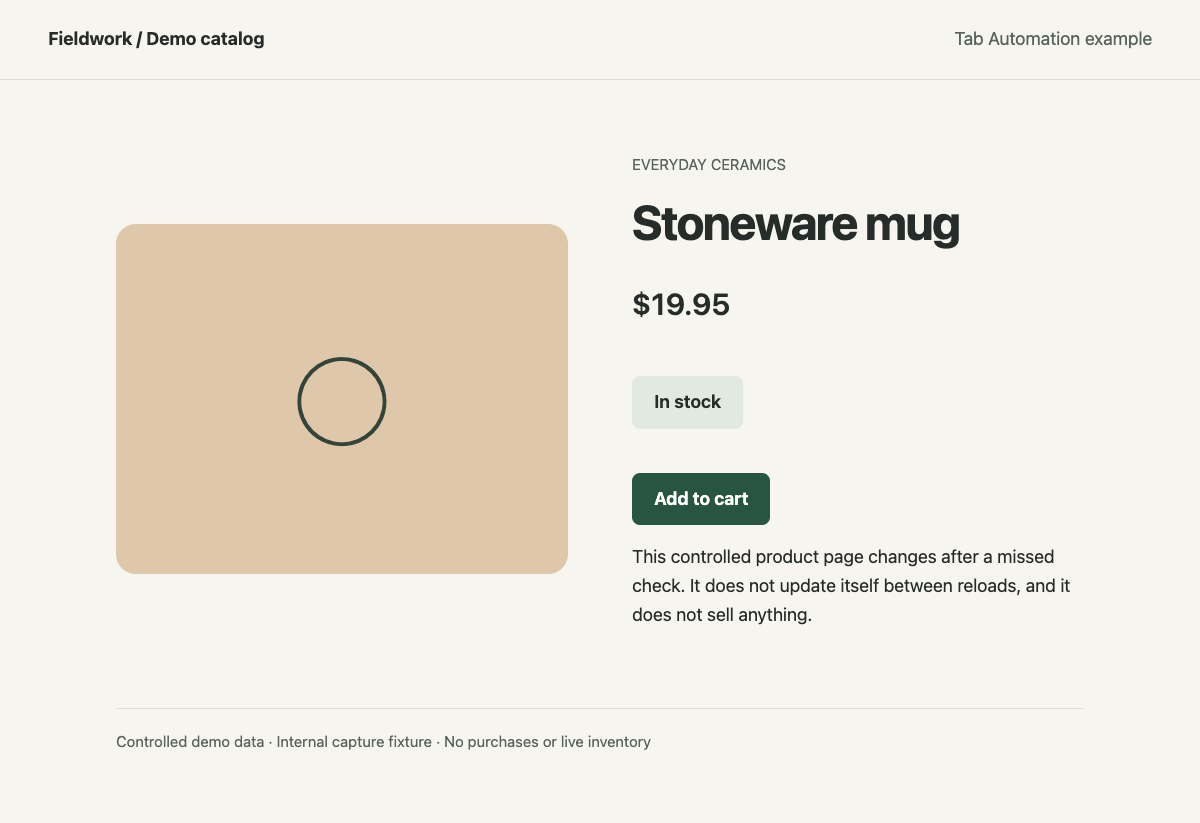
After: the status says In stock and Add to cart is enabled. The label did not change. Activity recorded the timeout, then the pause.
These are browser captures of internal demo data, not a live store. The webhook went to a local test address. It was not a phone notification. We did not click Add to cart.
To watch a product page you already have open, install Tab Automation and follow the setup below. Chrome must stay open.
See how it worksSet up a one-time back-in-stock alert
You’ll need Tab Automation installed. Custom automations are free; Explorer unlocks the full Dashboard. Google Search is coming soon. The side-panel tour covers first-time setup.
- Open the product page and choose the size or color you want, if the page has them.
- Open Tab Automation from its toolbar action. The extension opens in Chrome’s side panel.
- Click New Automation. Under Select a Tab, turn off Always start this automation in a new tab, then pick the open tab.
- Click Add Step, then choose Refresh Page.
- Add Wait / Delay. Switch it to Until, choose Matches, and Pick on page for the stock status. Choose contains and a Text value with the in-stock phrase that status shows, such as
In stock. - Set the timeout to Fixed and give it enough seconds for the status to be on the page after the reload. A timeout records a warning and the run continues into the next cycle.
- Turn on Pause when this wait succeeds.
- Turn on Repeat. Repeat starts off. Enabling it uses a 30-second Fixed wait under Wait before next cycle. Type a longer wait in seconds, such as
300for about five minutes. That wait is the gap after Until finishes or times out. - Under When it stops, turn on Desktop notification, Sound, or both. Add a phone webhook under Send the alert to your phone if you want one.
- Click Save & Run.
Until checks the loaded page about every 250 milliseconds until the phrase matches or the timeout ends. If the item is already in stock, the wait can succeed on an early check and pause immediately.
Alert on every reload that matches
Use this when you want a ping on each reload that still shows the item in stock. It keeps going until you pause it, or until a cycle count or duration ends. It does not remember that it already alerted you.
- Follow the setup above through Refresh Page.
- Add If / Else. It is marked Experimental. That label does not change the check. A new If is already set to When Page, Compare Exists. Change it: Pick on page for the status, choose contains, and compare with the in-stock phrase.
- Place Send Alert inside Then. Leave Else empty. Turn on the desktop notification, sound, or webhook you want.
- Leave Pause when this wait succeeds off. This recipe has no Until step.
- Turn Repeat on, set the wait, and click Save & Run.
Send Alert uses the title ending in Alert and the message This step ran. A Message override on that step changes the webhook text only. The desktop banner still uses This step ran.
Pick the product’s own status
Match the status that belongs to the item you are watching. On a store page, Sold out and Add to cart often appear again in a recommendation row. Whole page can match a different product.
On the demo page, Add to cart was visible while the mug was sold out. The label did not change when it came back. The status text did: Sold out, then In stock. The price stayed $19.95.
A check for is less than reads a plain number such as 19.95. A displayed price such as $19.95 does not qualify, so that comparison stays false and the alert never fires. Match the stock words.
Match the words that show up only when you can buy the item. A disabled button that still says Add to cart is a weak signal, because that label was already there while the demo mug was sold out.
Watch one size or color
Open the address for that size or color when the store gives it one, and watch that tab. The reload then stays on the variant you chose.
When the choice is only a button on the page, add Click Element after Refresh Page, then a short Wait / Delay so the status can update, then the stock check. Click needs a visible, unobstructed, enabled control. Chrome shows a debugging notice while the click is attached. A missing control waits up to six seconds. A disabled, hidden, or covered control fails on the first check. Either failure pauses the run, and When it stops alerts for that pause too.
Click Element presses the control you pick. It does not choose an entry in a dropdown. Each automation watches one tab. A second product needs its own automation. The multiple tabs guide covers that split.
Send the alert to your phone
ntfy can deliver the webhook to your phone while Chrome is open on this computer.
ntfy’s publishing guide says a topic is created when you publish or subscribe, and that the topic name works like a password because there is no sign-up. Topics on ntfy.sh are public, so pick a name that is hard to guess. Subscribe to that topic in the ntfy app.
- Open Settings with the gear in the panel header.
- Under Webhooks, add a destination named for this watch. Paste the topic URL, such as
https://ntfy.sh/your-topic-name. - On When it stops, or on the Send Alert step, turn Webhook on and select that destination.
- Optional: fill Message override with words you want on the phone, such as
Check the mug. Leave it blank to use the destination’s default message, then the usual alert copy: This automation paused. or This step ran.
The phone message also includes the page address. Send a Slack webhook when a Chrome page changes covers Slack, Discord, the Test button, and self-hosted ntfy, which receives generic JSON. Tab Automation does not add a custom authentication header. If a desktop Test is silent, follow Chrome notifications not working.
Choose how often to reload
The Repeat wait is seconds, from 0 to 3600. A store page does not need a reload every few seconds. Start with a few minutes. Fixed 300 asks for about five minutes between cycles. Random range varies the gap between a minimum and a maximum you type.
Installed Chrome will not fire the alarm faster than every 30 seconds, and it may wait longer. The one-second wait in the demo is what an unpacked build allowed. A sleeping computer is not woken for the next reload. Chrome delivers a missed alarm after the computer wakes, at most once for that missed period. Quit Chrome and the checks stop.
A reload every few seconds asks the store for the page much more often than you would. If the site signs you out for inactivity between longer waits, the stay signed in guide covers a slower reload. It does not bypass a fixed session lifetime.
When email or an always-on checker fits better
Use the store’s own Notify me or waitlist when you want email, or when the watch has to continue after you quit Chrome. Tab Automation does not send email or SMS, and it does not check from a server.
Use this extension when the product page is already open in your Chrome, including a page behind a sign-in you completed yourself, and you can leave Chrome running.
If you never get the alert
Check the element you picked. A phrase in a recommendation row does not match a different status, and a redesigned page may need to be picked again. Open Activity and separate Wait Until timed out from Pause when this wait succeeded.
If the reload shows a sign-in page or a captcha, handle it in the tab, then resume. This recipe does not solve challenges. If Repeat ran only once, turn Repeat on.
The alert is the end of the recipe. It does not add the item to the cart, enter payment details, or place an order.
Automation settings stay on this computer. Read the privacy policy for permissions and data handling.