You can now see which tabs Tab Automation is controlling by looking at their icons. A small blue play badge marks a running automation. An amber pause badge marks a paused one. You can keep working in another tab and still see where your automations are running.
If you have a dashboard refreshing, a link walk collecting information, and a paused automation waiting for you, those tabs can otherwise look like any others in the window. The new badges put their status beside their titles.
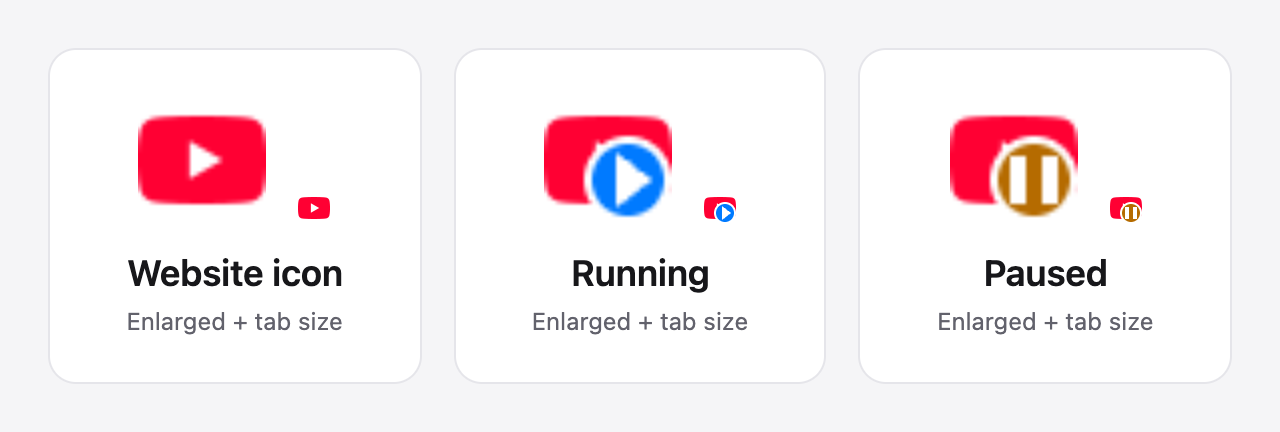
Favicon illustration using YouTube’s icon and the extension’s actual running and paused badges. Each pair shows an enlarged image and a 16-pixel example.
Read the badge
- Blue play: running. The badge stays blue during scheduled waits between cycles and Wait / Delay steps. It means the automation is running, even when it has nothing to do for a moment.
- Amber pause: paused. This includes automations you pause yourself and ones paused for user intervention.
- Website icon restored: the automation finished, failed, was removed, or released the tab. A missing badge alone does not tell you which happened; check Active automations and Activity for details.
The website’s icon stays underneath the badge so you can still recognize the tab. If its icon cannot be loaded, we use a neutral globe beneath the status mark.
The indicators apply to assigned tabs across automations and pre-built workflows. A parked automation or one without an assigned tab has no tab to mark.
Keep working in another tab
You do not have to select a loaded tab for its badge to update. Starting, pausing, resuming, and removing an automation update the indicator while that tab stays in the background. The badge is reapplied after navigation, too.
We checked this in Chrome with a tab that was never selected during the test. That caught a hidden-tab image-loading bug before this announcement: the badge had been waiting for the page to become visible. It now updates without that extra visit.
For the difference between a loaded background tab and one Chrome has unloaded to save memory, see auto refreshing a background tab.
On by default, with one switch
Open Settings from the side panel’s gear and find Show automation status on tab icons. It is enabled by default, including for existing installations without a saved preference.
Turn it off to restore the affected website icons immediately. Your automations keep their current state. Turn it back on to see their running and paused badges again.
The side-panel tour covers the controls for managing each automation.
A small change to the website icon
The small website image in a tab is its favicon. Tab Automation temporarily replaces it with a locally generated image containing the original artwork and the status badge. Saved automation and Library icons retain the underlying website icon.
Favicon display is best effort. Restricted pages and sites whose image policies reject the replacement may keep their normal icon. Chrome may show a loading spinner during navigation, and an unloaded tab needs a loaded page before we can apply the badge. Disabling or uninstalling the extension can leave a badge until the page is reloaded.
Use the badges for a quick glance, and Activity when you need the full story of a run.